Construction stages
Construction stages panel
The panel Construction stages contains only the Construction stages tool.

Construction stages tool
Use the Construction stages tool to model how a structure is erected, altered or demolished over time.

Tool can open either of the two inputs depending on the model:
- Settings dialogue – appears when no stages exist yet, so you can create them from scratch
- Tool palette – appears once at least one stage has been defined, letting you assign elements and preview the construction sequence
note
The Construction stages tool in the Structure tab works together with the Construction stages loads. Read more about it here:
User interface ➔ Tab menus ➔ Loads ➔ Panel Load case, combination, group & construction stage ➔ Construction stages
Settings dialogue
Opens on the first use of the tool or via Construction stage settings function.
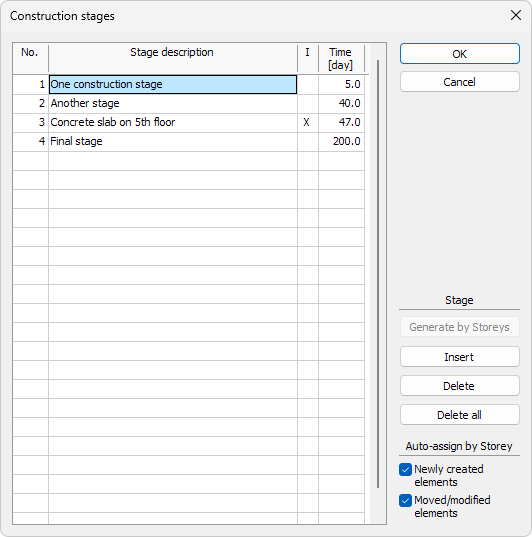
Stage table
- Stage description – free text, e.g. Basement excavation
- I – tick to set this stage as the Initial stress state. The Initial stress state will reset the calculation of the stage displacements, but the internal forces and stresses will be accumulated. These stresses are present in the initial state of the next stage
- Time – end time of the stage in days from the start of construction
info
Stages are executed in the order shown. Each Time value must be greater than the one above.
Control buttons
- Generate by Storeys – create one stage per storey
- Insert / Delete / Delete all – manage rows in the table
Auto-assign by storey
- Newly created elements – select to allow new objects to inherit the stage of their storey
- Moved / modified elements – select to allow edited objects to be re-tagged to the current storey stage
Tool palette
Opens after stages exist.

Main tools
- Reassign structural elements to Construction stage – pick elements, then choose when they appear/disappear
- Construction stage settings – reopen the construction stages settings dialogue described above
Palette settings
- First stage – use the drop-down to select a stage, where selected element become active
- Last stage – use the drop-down to select the final stage where the element is active. If Last stage option is selected in this drop-down menu, the element will be active for the rest of the calculation
- View – slider that steps through stages to show which elements are active at each stage
- Animate result – plays the slider automatically for a quick construction-sequence animation