User profiles improvements
FEM-Design provides a wide range of tools, but not all of them are needed for everyday tasks. FEM-Design 25 allows users to customize and optimize their working environment by focusing only on the tools relevant to their typical workflows.
Users can select and display only the required structural and load definition tools, finite element and analysis tools and discipline-specific design tools within the tab menus, highlighted in orange in the figure, as well as their preferred drawing, editing and visualization tools within the toolbars, highlighted in red.
These customized layouts can then be saved under a named User profile.

Multiple User profiles can be created for different task types. For example, a dedicated “3D Frame” profile can be defined for the analysis and design of spatial steel frame structures.
A User profile also stores the configuration of the model input, Documentation, and Detailed result work windows.
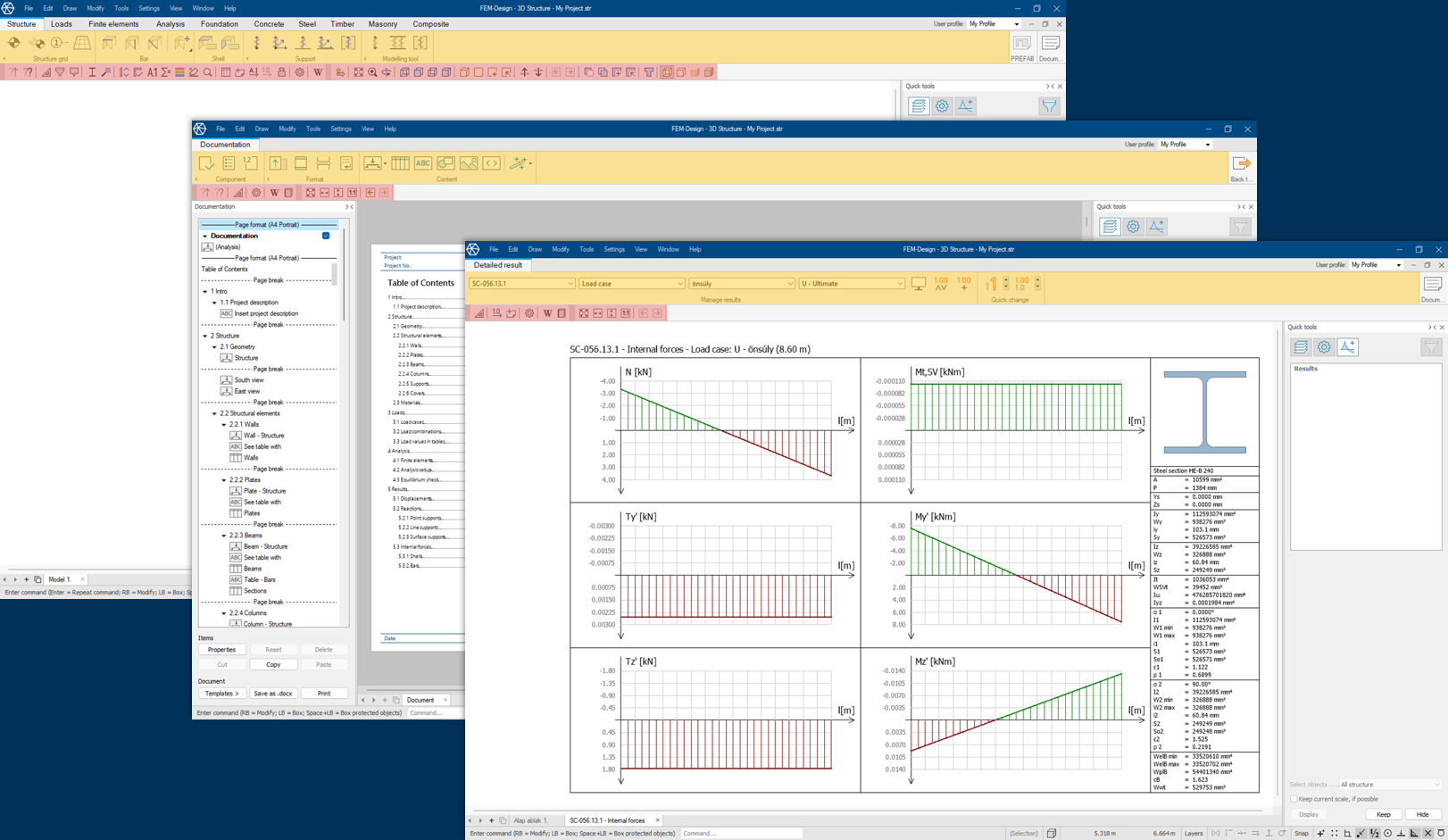
Because the FEM-Design 3D Structure and Plate modules contain the most extensive toolsets, User profile creation and application are currently available only in these modules.
Saving a User profile based on the current tab menu and toolbar content is straightforward. When tool visibility is modified, the active profile switches to a Custom state, indicating that the changes have not yet been saved.
The current configuration can be stored using the Configurations option in the User profile drop-down menu. Assign a unique name and click New to create a profile. To activate a profile, select its name and click Select. Both user-defined profiles and factory-installed profiles can be accessed at any time from the User profile drop-down menu.
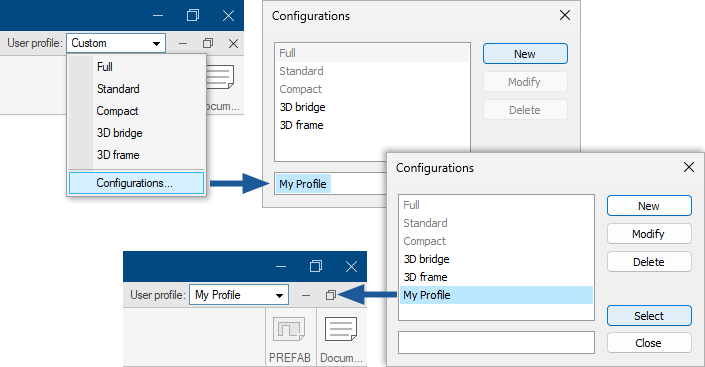
User-defined profiles can be modified, overwritten or deleted. Factory-installed profiles cannot be modified or removed.