Export StruXML
Concept
The StruSoft StruXML Revit Add-In operates on analytical model elements. Physical elements in Revit/Impact can be converted to analytical ones using Revit's Analytical Automation, and vice versa when importing from FEM-Design.

The export is based on transferring the exact geometry and position of Revit analytical objects (members and panels) to struxml file, along with its properties.
The struxml file can then be opened in FEM-Design.
Following elements and properties can be exported from Revit to FEM-Design using the StruSoft StruXML Revit Add-In:
| Elements | Properties |
|---|---|
| Analytical Member | Structural Role |
| Analytical Panel | Material of an element |
| Analytical Links | Section / Profile / Thickness of an element |
| Boundary Conditions | Releases of linear elements |
| Structural Foundations (except Wall foundations) | Element ID |
| Loads | Load comment |
| Grids | |
| Levels |
Prefabricated panels from Impact can be exported as profiled analytical members.
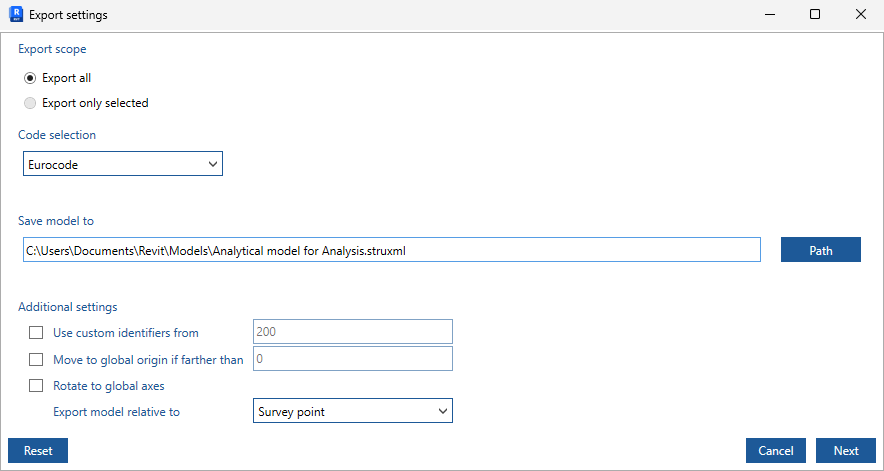
Export settings
Export scope
Export all elements or export only selected ones (selection needs to be done beforehand).
Code selection
Select one of the design codes. Chosen code and national annex will influence the material and sections library that will be used for mapping.
Save model to
Select the location, where the struxml file shall be saved.
Use custom identifiers from
The export of the user defined identifiers is optional. In order to export those parameters, select the option and type the name of the Instance parameter containing the ID's. The instance parameter used for the ID allocation can be a native Revit parameter or user defined shared / project parameter. It is advised to use text parameter type.
Move to global origin if farther than / Rotate to global axes
For analysis and design workflows, engineers typically prefer models located close to the origin and aligned with the global coordinate system. With these dedicated export settings, models positioned far from the origin or arbitrarily oriented in Revit can be automatically aligned to the origin and global axes in FEM-Design.
Since these export settings allow Revit models to be repositioned and rotated for analysis purposes, maintaining bidirectional communication requires transforming the model back to its original Revit position. The Add-In handles this automatically during import, as the applied transformation is stored and associated with the originating project.
Export model relative to
Revit projects support multiple reference systems:
- Global origin
- Project base point
- Survey point
This option allows selecting which reference system the exported model should be relative to, ensuring consistent and controlled positioning.
Reset
Press the Reset button in order to reset all user settings across the dialog to the default ones.
Conversion
The Conversion table lists all the objects that can be exported from the current Revit model to the struxml file and their respective count. Here you can decide if to export a certain group of objects, or not, and what each object type shall be converted to in the struxml file.
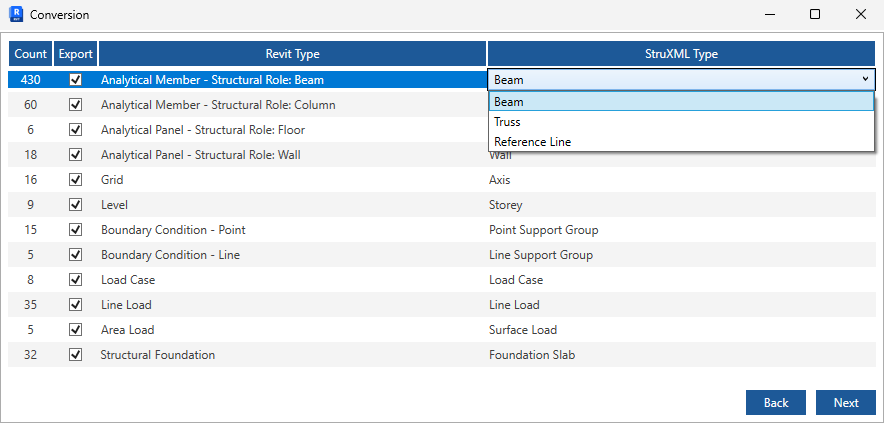
For Analytical Panels and Members, the conversion options depend on their Structural role parameter. For example, if the Structural role of a Member is set to Beam, then it is possible to export it to struxml as a Beam, Truss or a Reference Line.
All object types, including grids and levels, can also be exported to StruXML as simple drawing elements, either as reference lines or as region objects.
Material mapping
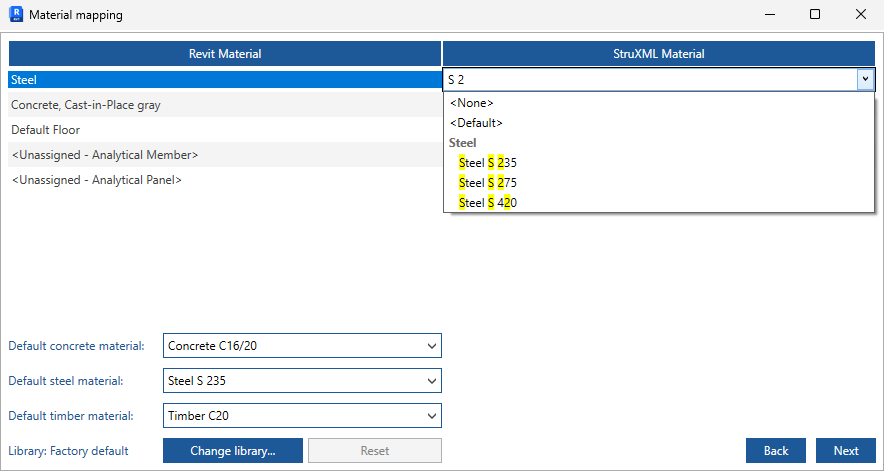
The Material mapping table lists all the materials that are assigned to the members and panels that are selected for export.
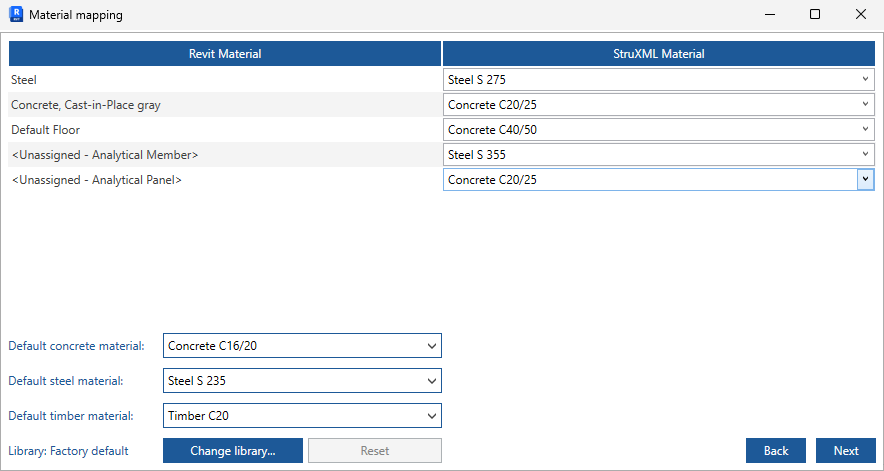
Each material type listed in the Revit material column can be mapped to either a material from the factory default or a loadable custom FEM-Design material library, or to a default FEM-Design material. Default materials by types can be defined in the lower part of the mapping dialogue.
Materials can be explicitly assigned to Analytical Members and Panels that have no material defined (marked as <Unassigned>).
Section mapping
The Section mapping table lists all the sections that are assigned to the members that are selected for export.
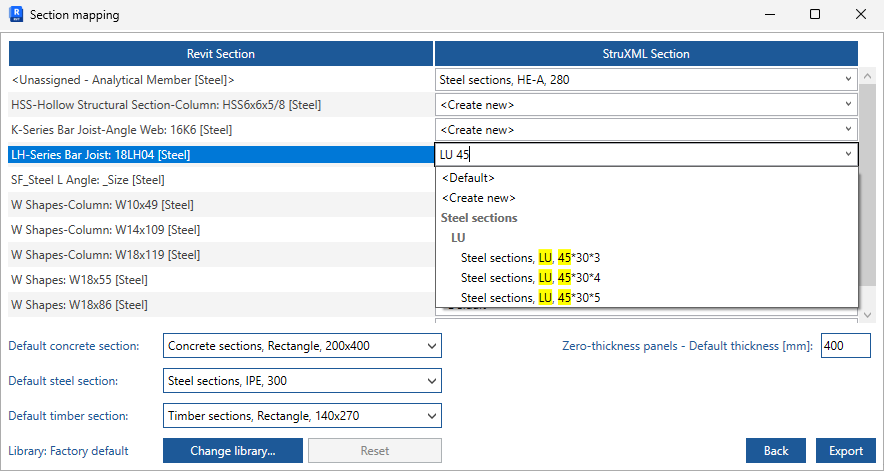
Each section type listed in the Revit Section column can be mapped to either a section from the factory default or a loadable custom FEM-Design section library, or to a default section. When no matching section is found, new FEM-Design sections can also be created using the Create new option.
Sections can be explicitly assigned to Analytical Members that have no section defined (marked as <Unassigned>).
A default thickness can also be defined for Analytical Panels without thickness.
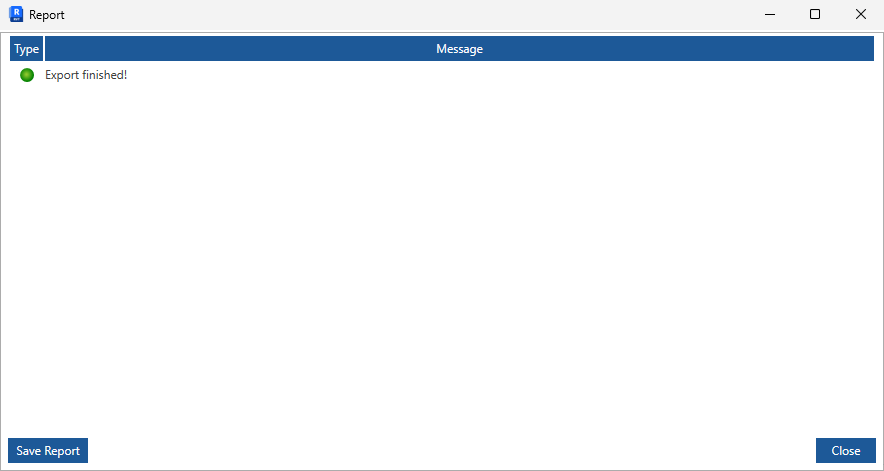
Report
The Report page lists the possible warning and error messages about the objects at the export. At the moment, we only list one message per object, so even if there is more "issues" with an object, massage about only one of them will be printed. The report can be saved to a txt file.