Import StruXML
Concept
Any saved FEM-Design model can be imported to Revit in a form of analytical model. FEM-Design structural objects will be converted to members and panels and their physicial model can be later created using Revit's Analytical Automation tool.
Following elements and their properties can be imported from FEM-Design to Revit using the StruSoft StruXML Revit Add-In:
| Elements | Properties |
|---|---|
| Structure grid (Axes and Storeys) | Material of an element |
| Bars (Beams, Columns, Trusses) | Section / Thickness of an element |
| Shells (Walls and Plates, including Profiled and Timber panels) | GUID of an element |
| Foundations (Piles, Isolated and Wall foundations, Foundation slabs) | Name ID of an element |
| Supports | Type of an element |
| Modelling tool objects (Covers, Diaphragms, Fictitious bars and shells, Point connections) | Rotation |
| Loads and load cases | Releases of linear elements |
Import settings
Path
Select a model to import.
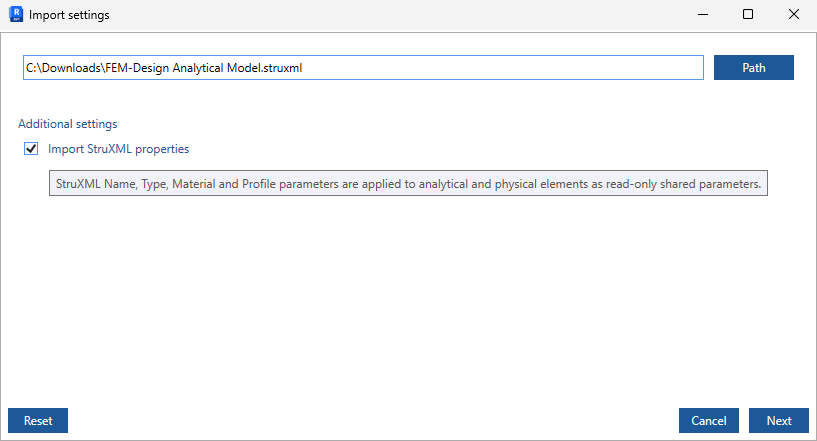
Import StruXML properties
Press Import StruXML properties if you want to transfer original FEM-Design (StruXML) data to each imported structural element, including:
- FEM-Design Name (ID and position number)
- Object type
- Material and cross-section
- Global unique ID (GUID)
A Shared Parameters file must already be defined in the Revit project to create the StruXML properties. This can be set up from the Revit's Manage menu before importing. If no Shared Parameters file is available, a warning is displayed and the user is guided through the process of creating one.
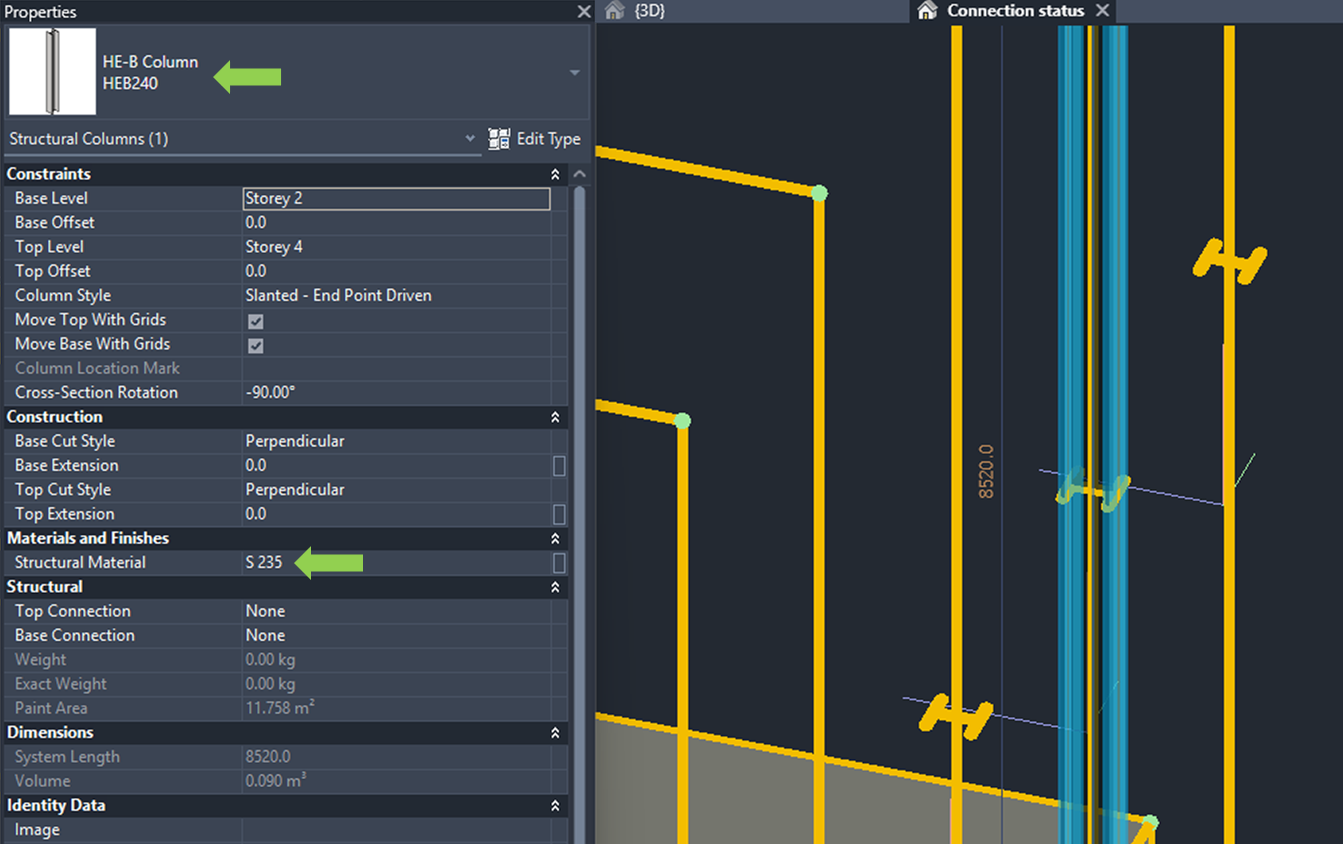
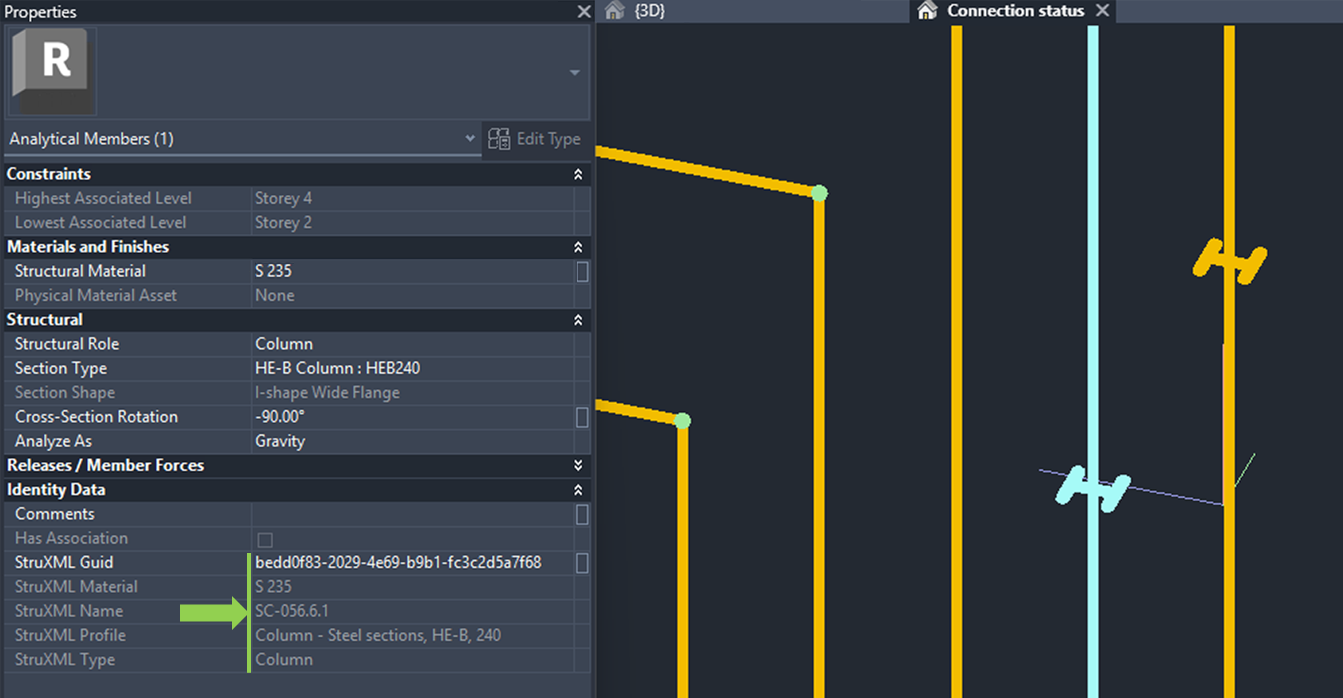
All these data is applied to analytical members and panels as Shared parameters and is read-only.
Conversion
The Conversion table lists all the objects that can be imported from the loaded struxml file, and their respective count. Here you can decide if to import a certain group of objects, or not, and what Structural role each object type shall be converted to in Revit.
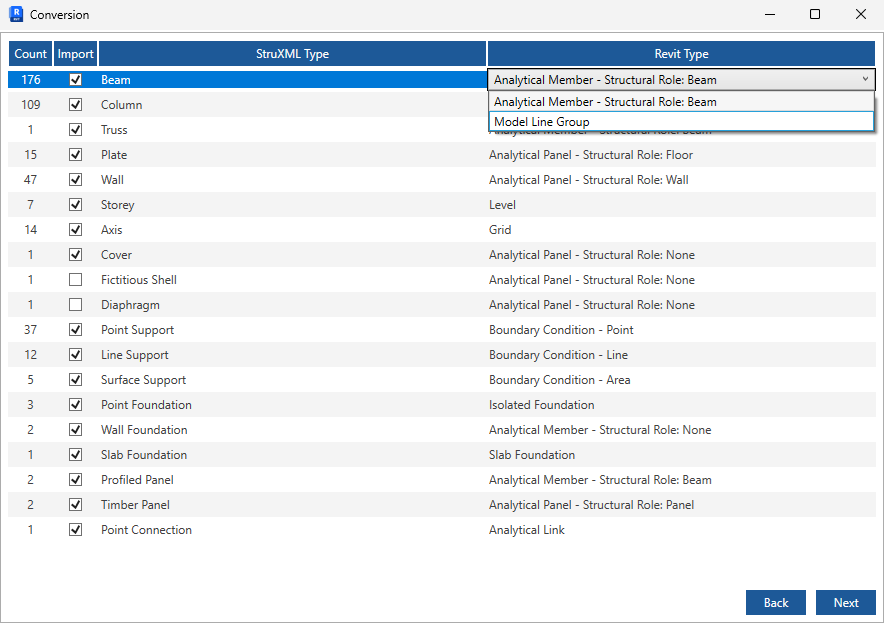
Each object type, including Axes and Storeys can be imported to Revit as Model Line (group).
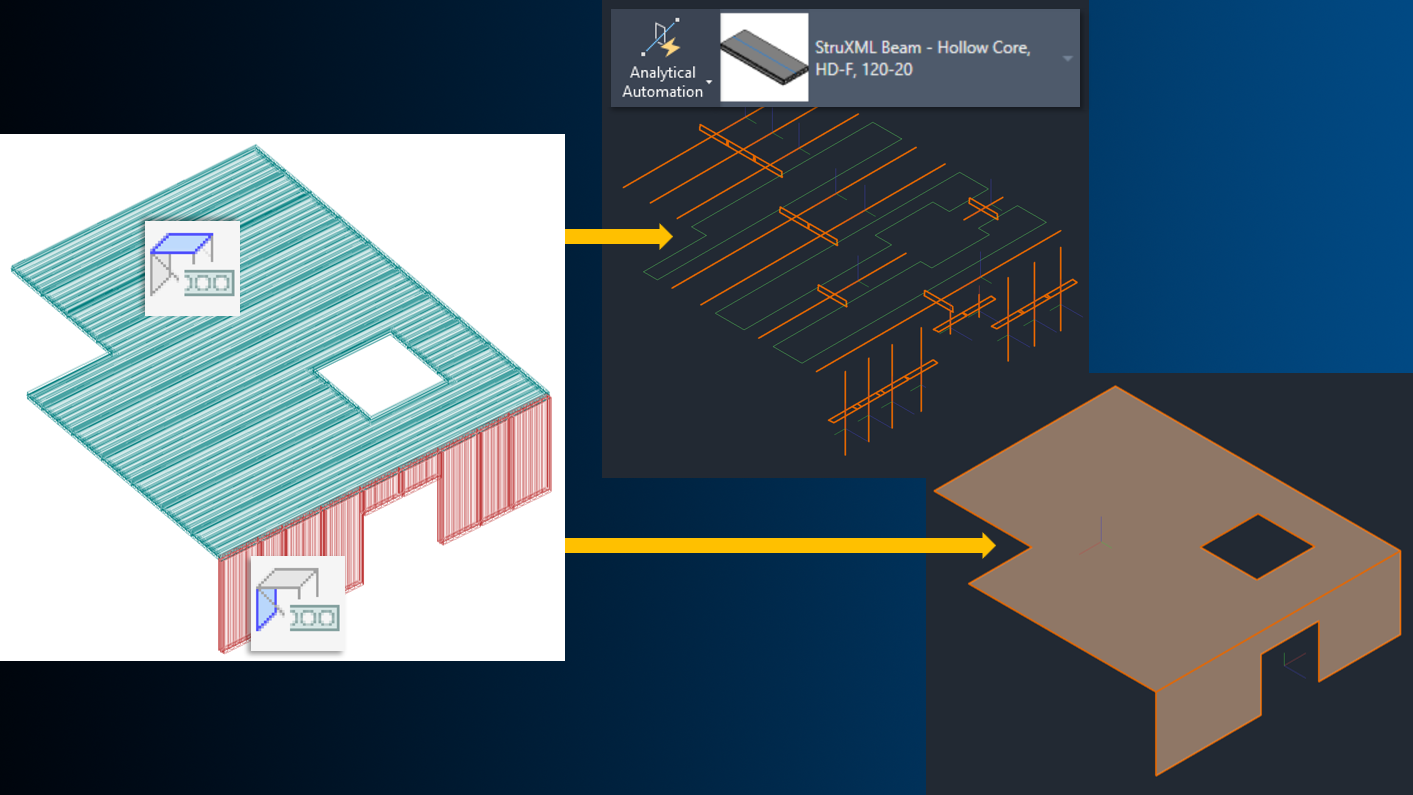
Profiled panel shell objects modelled in FEM-Design (such as hollow-core slabs or walls) can be imported into Revit using configurable options:
- as profiled Analytical Members (or Model Lines for cut or segmented panels),
- as simplified, unified Analytical Panel objects, or
- as reference contour lines (Model Line Groups).
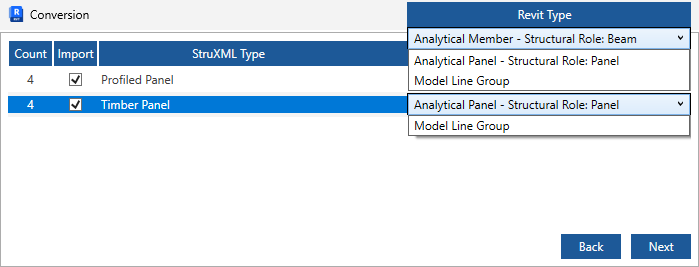
FEM-Design Timber panels can be transferred to Revit either:
- as Analytical Panel objects, or
- as reference model line groups representing their original contours.
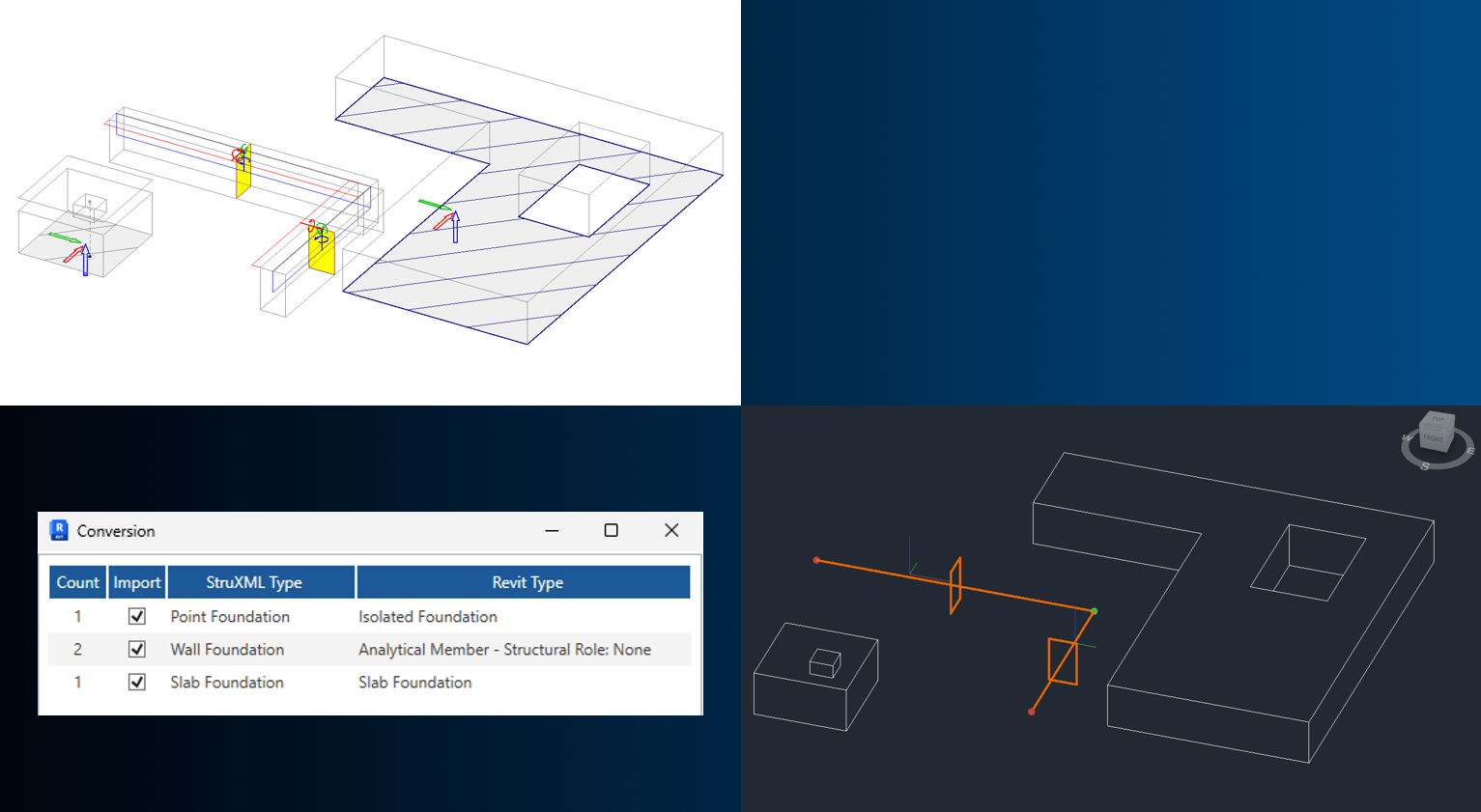
Foundation elements designed in FEM-Design can be transferred to Revit using appropriate representations:
- Isolated and Slab foundations are transferred as physical Revit model objects, as no direct analytical equivalents exist in Revit.
- Wall foundations are transferred as editable profiled Analytical Members.
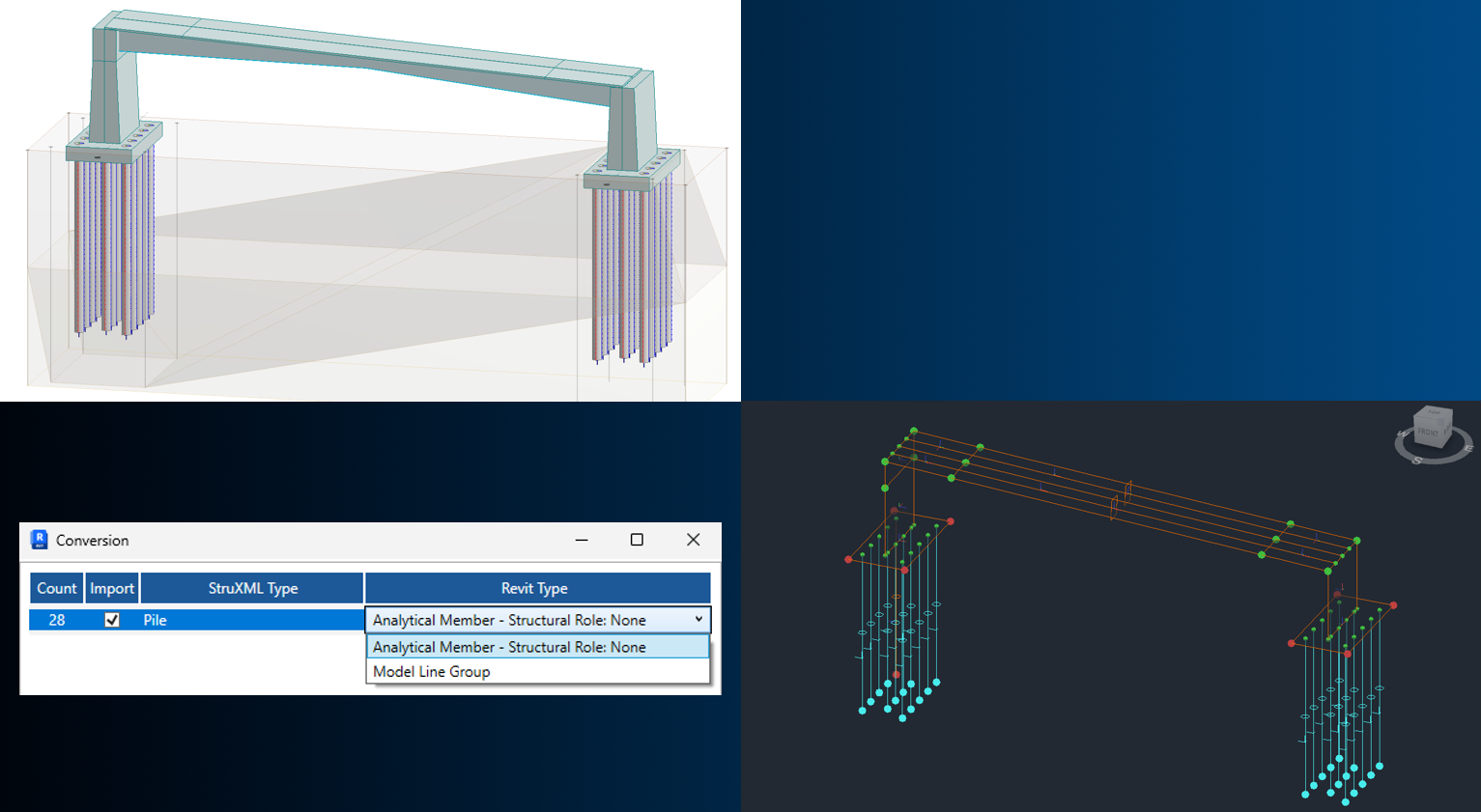
Piles designed in FEM-Design can also be imported into Revit:
- as profiled Analytical Members, or
- as reference lines, depending on the desired workflow.
Material mapping
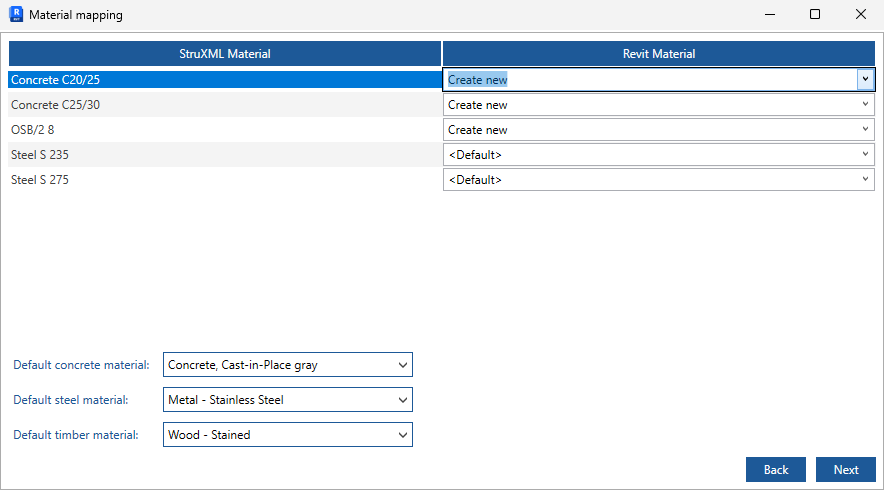
The Material mapping table lists all materials assigned to the members and panels selected for import.
Each material type listed in the StruXML Material column can be mapped either to a material from the Revit material library or to a default material.
Materials from FEM-Design can also be automatically created and stored as new materials in the Revit project database.
Section mapping
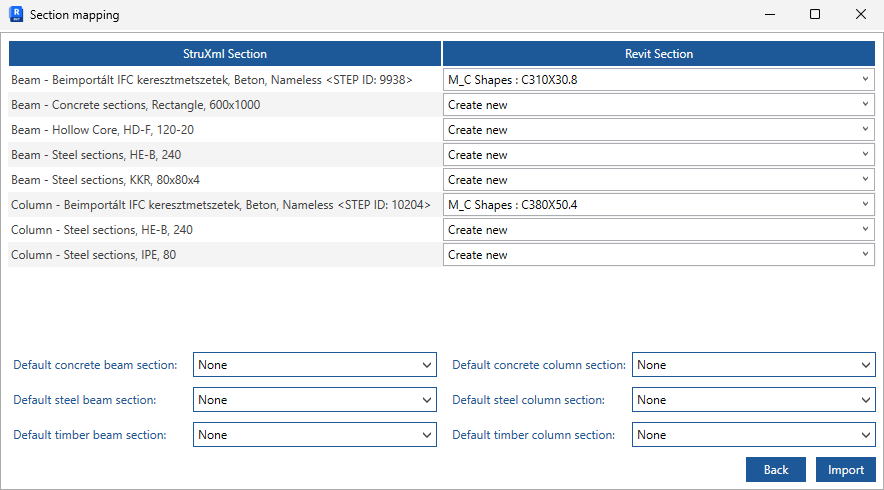
The Section mapping table lists all sections assigned to the objects selected for import.
Each section type listed in the StruXML Section column can be mapped either to a section from the Revit section library or to a default section.
Cross-sections designed in FEM-Design can be automatically generated and stored in the Revit project, ensuring lossless transfer of designed elements.
Report
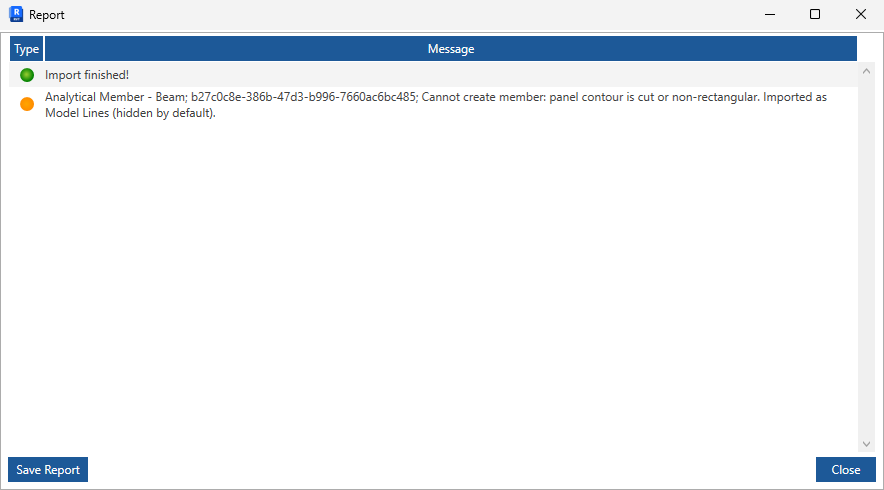
The Report page lists the possible warning and error messages about the objects at the import. At the moment, we only list one message per object, so even if there is more "issues" with an object, message about only one of them will be printed. The report can be saved to a txt file.
Display import results
To display the complete imported model in a Revit view, combine the following display options:
- Use Connection Status to display Analytical Panels (shells), Members (bars), and Links (connections) together with their nodes.
- Use Visibility/Graphics > Analytical Model Categories to display Boundary Connections (supports).
- Use Visibility/Graphics > Model Categories to display imported physical objects, such as Structural Foundations, as well as Levels (storeys) and Grids (axes).
- Use Visibility/Graphics > Model Categories > Lines > Lines to display imported Model Lines.
Analytical to Physical workflow
Thanks to the enhanced analytical data mapping provided by the Add-In, physical Revit model elements can be generated reliably using Revit’s Analytical Automation tools.