Connection status
Connection tool applies filters on analytical nodes to check their connectivity.

Click on Connection Status tool in order to create a view called Connection Status that will display the analytical model including analytical nodes that are filtered by their connection status (green node – connected, red node – unconnected). The view shows all available analytical objects (excluding the analytical links, boundary conditions and loads).
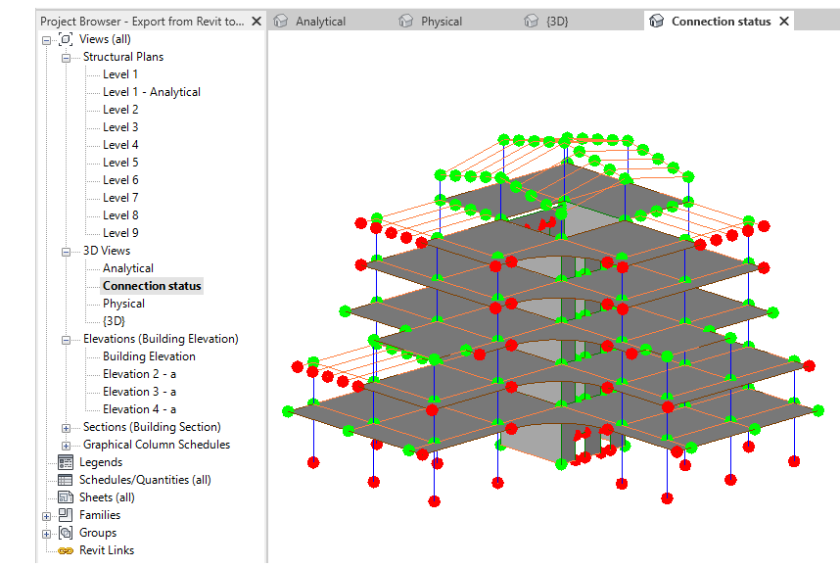
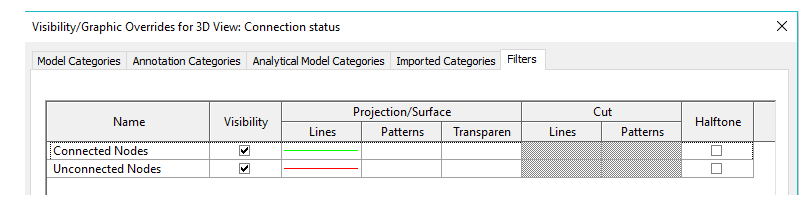
Two filters are applied to that view in order to distinguish between the connected and unconnected nodes.
-
The Connection Status view is created as a copy of the current view. For example, if the current view is a 3D view, a new 3D Connection Status view will be created. Similarly, if the current view is a Structural Plan, a new Structural Plan showing the connection status will be created.
-
If a view template is applied to the current view, it will not be copied to the Connection Status view.
-
Only one Connection Status view can exist for each view type.
Connection Status can also be used during the import process to display Analytical Panels (shells), Members (bars), Links (connections), and their nodes. Other imported elements, such as Model Lines, Structural Foundations, Levels, and Grids, can be displayed by enabling the corresponding categories under Visibility/Graphics.