Auto design
Auto design
Use Auto design to define design preferences and run automatic timber design for the selected subtype.

Tool palette
When you activate Auto design, a tool palette opens.

The tool palette contains the following main tools and options:
-
Parameters – opens a subtype-specific parameters dialogue after you select an element in model view.
-
Design – runs automatic design with the selected settings.
-
Calculation – lets you choose:
- Load combinations
- Load groups
-
Display table – checkbox that shows the utilization table.
Parameters dialogue
When you select an element in model view, the Parameters dialogue opens based on the currently selected design subtype.
Timber bar subtype
The dialogue opens with section selection where you choose the allowed sections to be used in auto design.
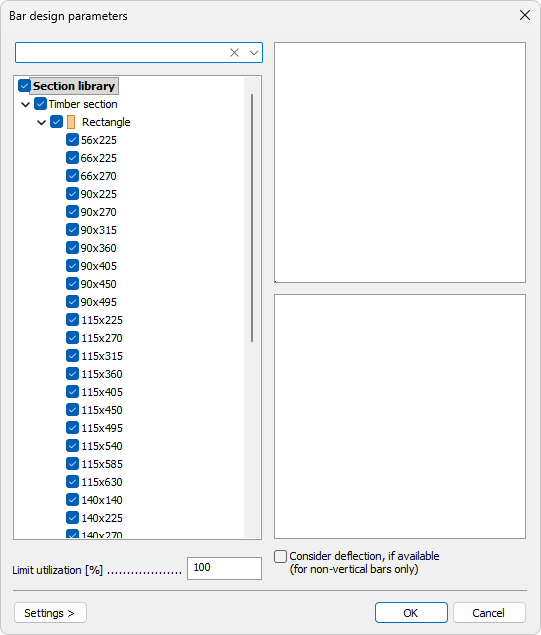
This selection is similar to the Bar Section dialogue.
To read more about section selection logic, see:
User interface ➔ Tab menus ➔ Structure ➔ Additional dialogues ➔ Bar Section
Additional options in this subtype:
-
Limit utilization – numeric field that allows using a target limit lower than 100%.
-
Consider deflection, if available (for non-vertical bars only) – checkbox to include deflection result check in design.
Orthotropic panel and CLT panel subtypes
The dialogue contains a list of possible shell thicknesses.

Each thickness has a checkbox so you can include or exclude it from the auto design candidates.
- Limit utilization – numeric field that allows using a target limit lower than 100%.
Timber bar, fire design and CLT panel, fire design subtypes
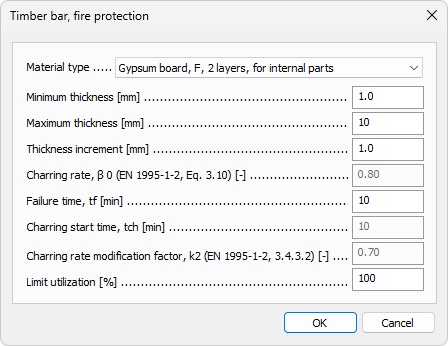
-
Material type – selects the fire protection material used for fire design calculations.
-
Minimum thickness – sets the smallest thickness considered during the design search.
-
Maximum thickness – sets the largest thickness considered during the design search.
-
Thickness increment – defines the step between tested thickness values.
-
Charring rate, β0 (EN 1995-1-2, Eq. 3.10) – defines the base one-dimensional charring rate for the fire calculation.
-
Failure time, tf – sets the required fire resistance time to be satisfied.
-
Charring start time, tch – sets the delay before charring starts, for example due to protection effects.
-
Charring rate modification factor, k2 (EN 1995-1-2, 3.4.3.2) – modifies the base charring rate according to the selected design assumptions.
-
Limit utilization – sets the maximum allowed utilization target for auto design.
Design tool
Use Design to select suitable elements in model view and run automatic design with current settings.
When Display table is checked a Utilization table opens.
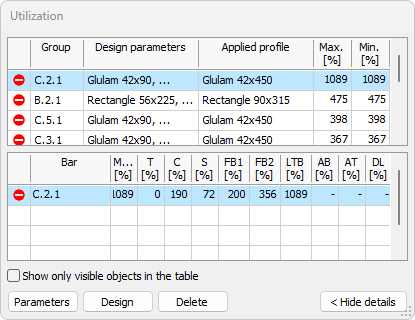
The table allows you to review utilization and update selected manual design quantities.
To read more about utilization table, see the Check tool article:
User interface ➔ Tab menus ➔ Timber design ➔ Check
Table options and buttons
The bottom part always contains:
-
Show only visible objects in the table – limits rows to currently visible model objects.
-
Parameters – opens the Default settings dialogue for selected row.
-
Design – runs design for selected row.
-
Delete – deletes applied design quantity for selected row.