New features in version 2.0.010
Enhanced analytical model connectivity between Revit (including StruSoft Impact Precast) and FEM-Design enables reliable bi-directional workflows, advanced data mapping, and efficient collaboration across StruSoft design tools.
Revit / Impact Precast Connectivity
FEM-Design 25 delivers a new, enhanced version of the Revit Add-In, further strengthening the analytical model–based connection between Autodesk Revit, StruSoft Impact Precast, and FEM-Design.
The updated Add-In is designed to support reliable, bi-directional BIM workflows, ensuring consistent data exchange across analysis, design, and BIM authoring environments.
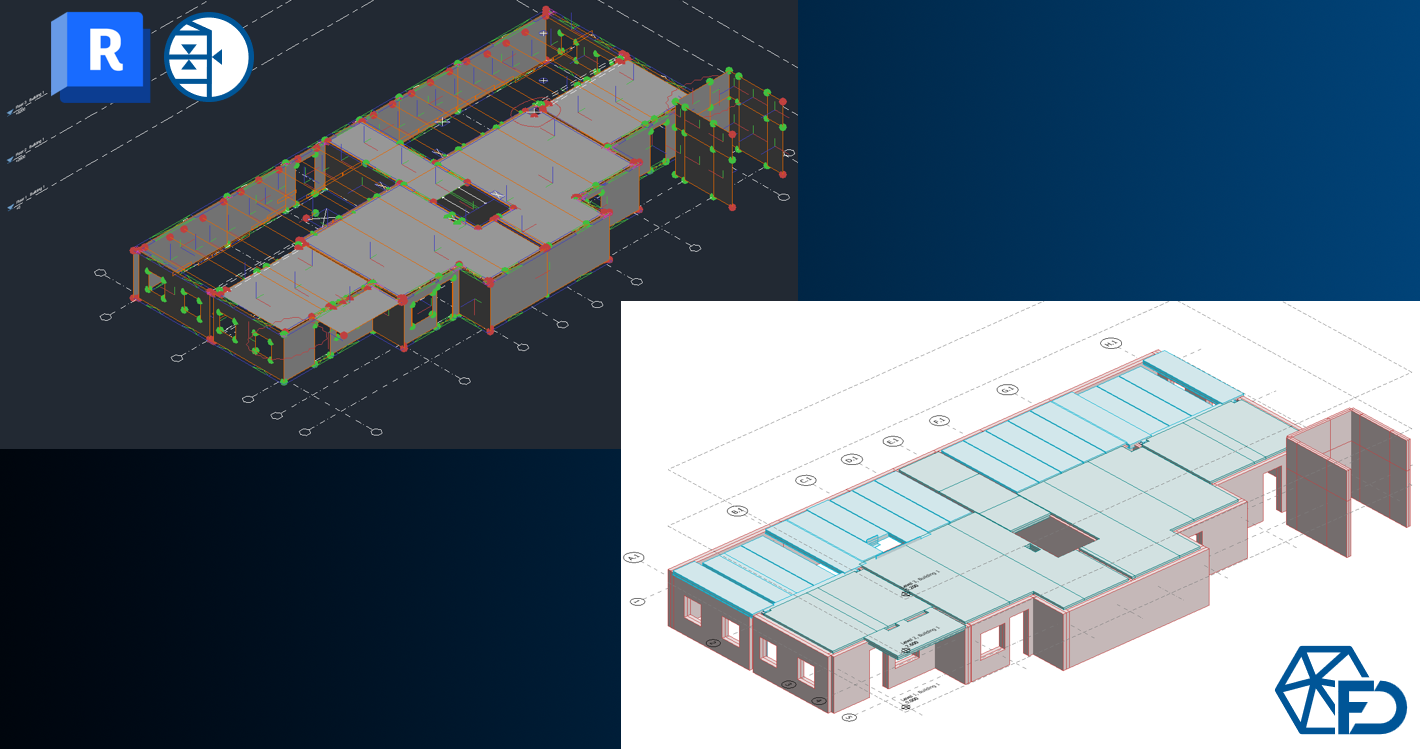
The Add-In operates on analytical model elements shared between the platforms.
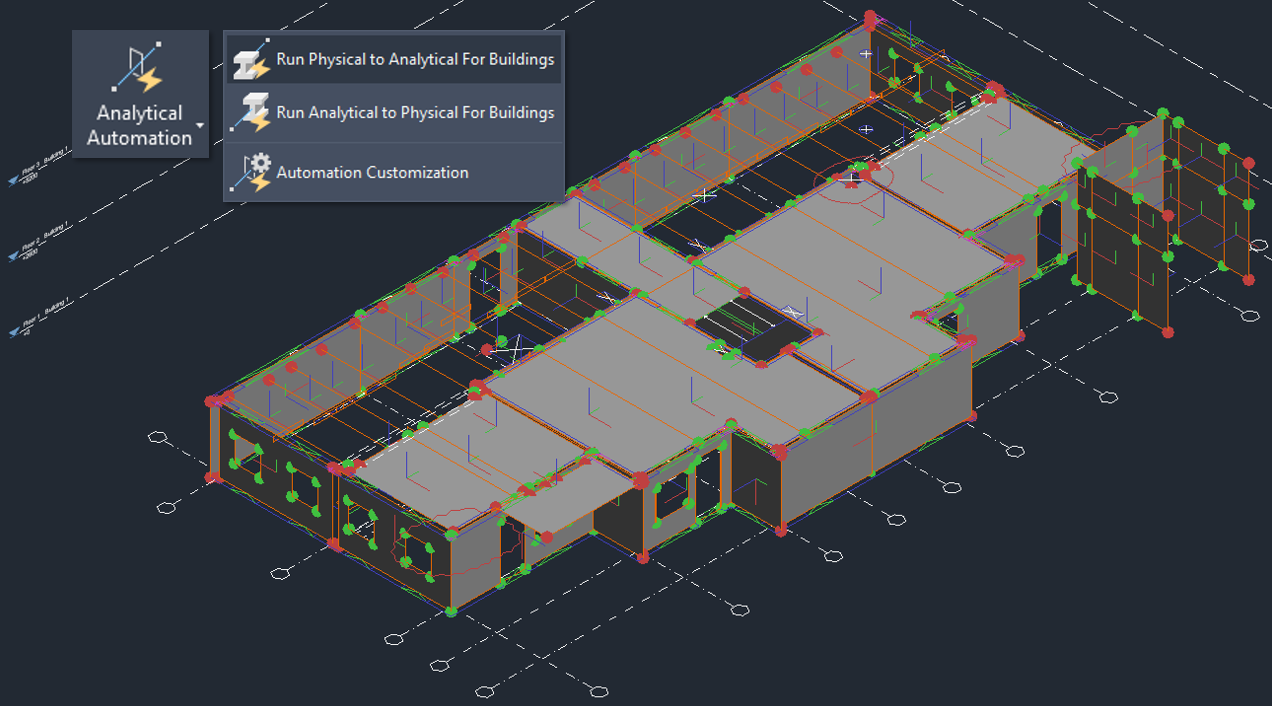
In Revit and Impact projects, physical model objects can be converted into analytical elements using Revit’s native Analytical Automation tools, or analytical elements can be created manually.
Conversely, analytical model elements exported from FEM-Design can be converted into physical model elements in Revit using the same automation mechanisms.
When analytical models are not created in the source Revit project, IFC-based workflows remain a suitable option for exporting models to FEM-Design. However, for workflows where analysis and design results need to be transferred back to Revit in an editable and structured form, this enhanced Revit Add-In–based analytical model connection is the recommended approach.
Complete Type mapping
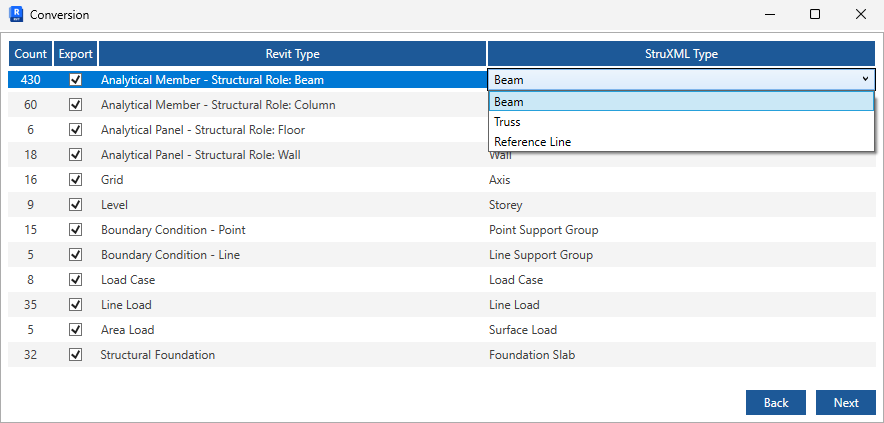
The enhanced connectivity provides complete type mapping for all shared structural object types between Revit (Impact Precast), and FEM-Design.
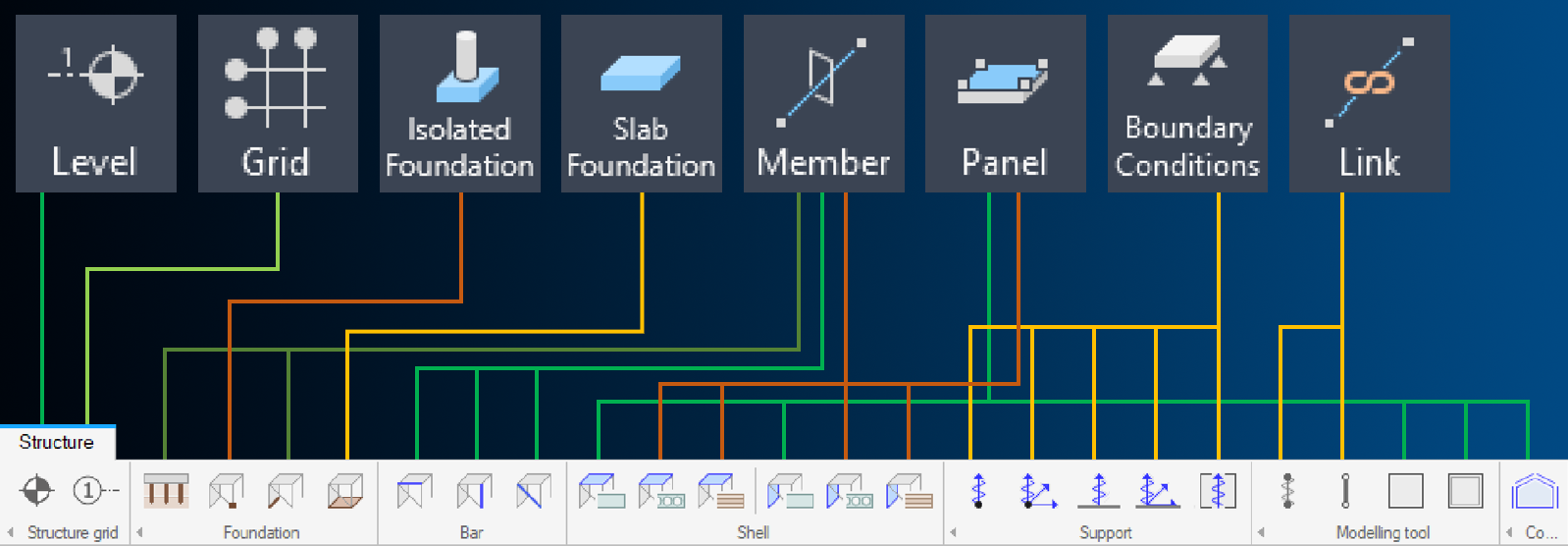
Extended mapping options allow incoming and outgoing objects to be assigned to the most appropriate categories in each platform, improving interpretation and subsequent usability.
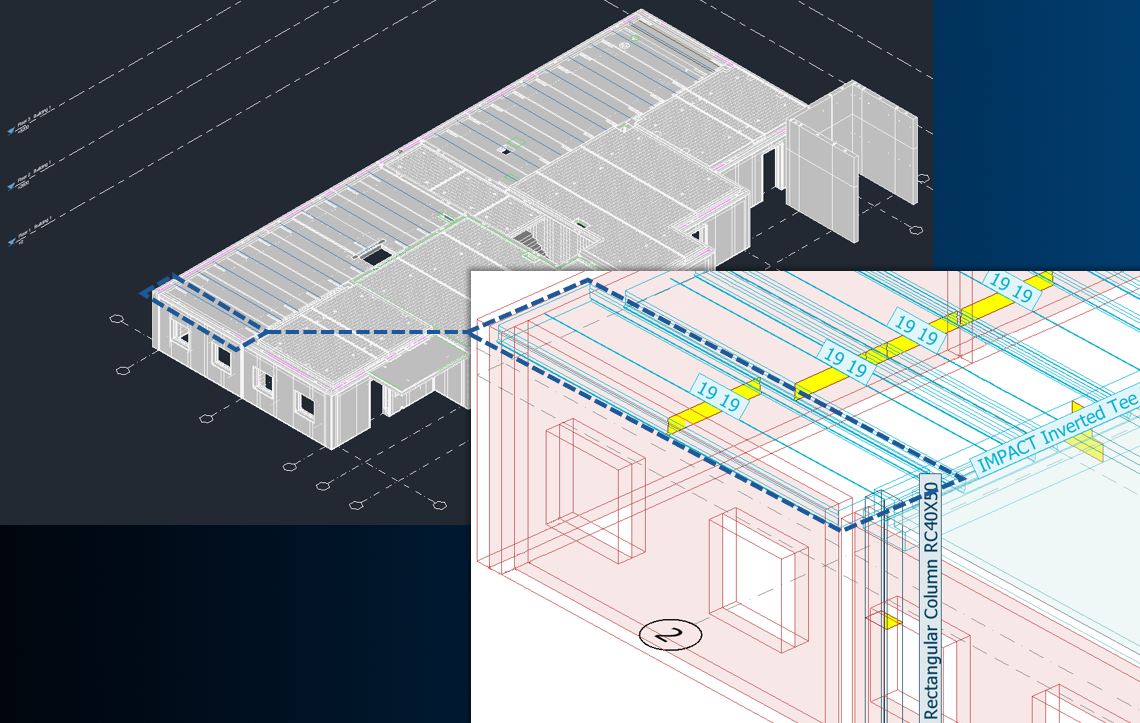
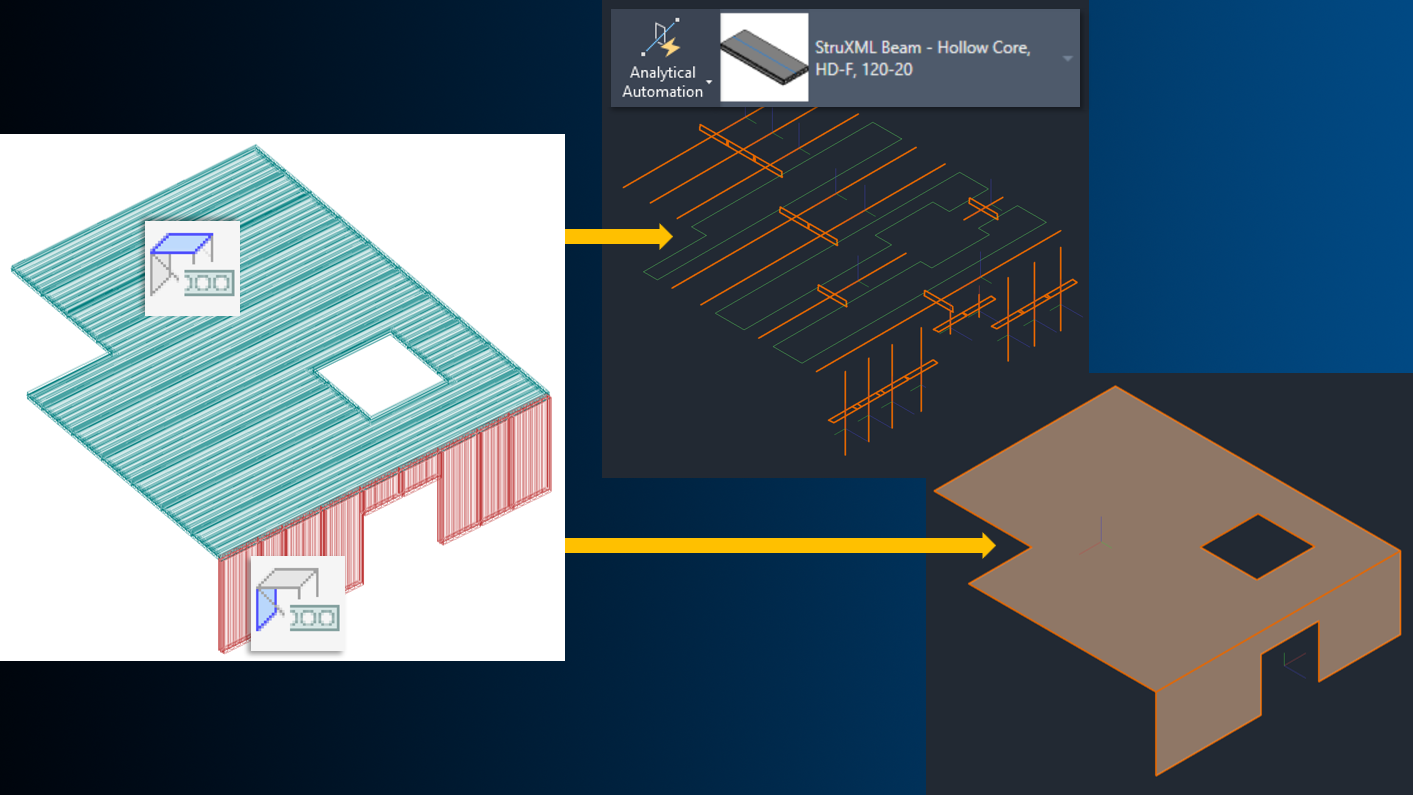
A key enhancement is the transfer of prefabricated panels defined in Impact. On the Revit platform, these elements are represented as profiled analytical members and are imported into FEM-Design as corresponding profiled beam elements.
For analytical transfer of Impact panels, the panels must be converted into analytical members using Revit’s Analytical Automation. In addition, the Parts Visibility option of the panels should be set to Show original, as the conversion operates on the original panel geometry.
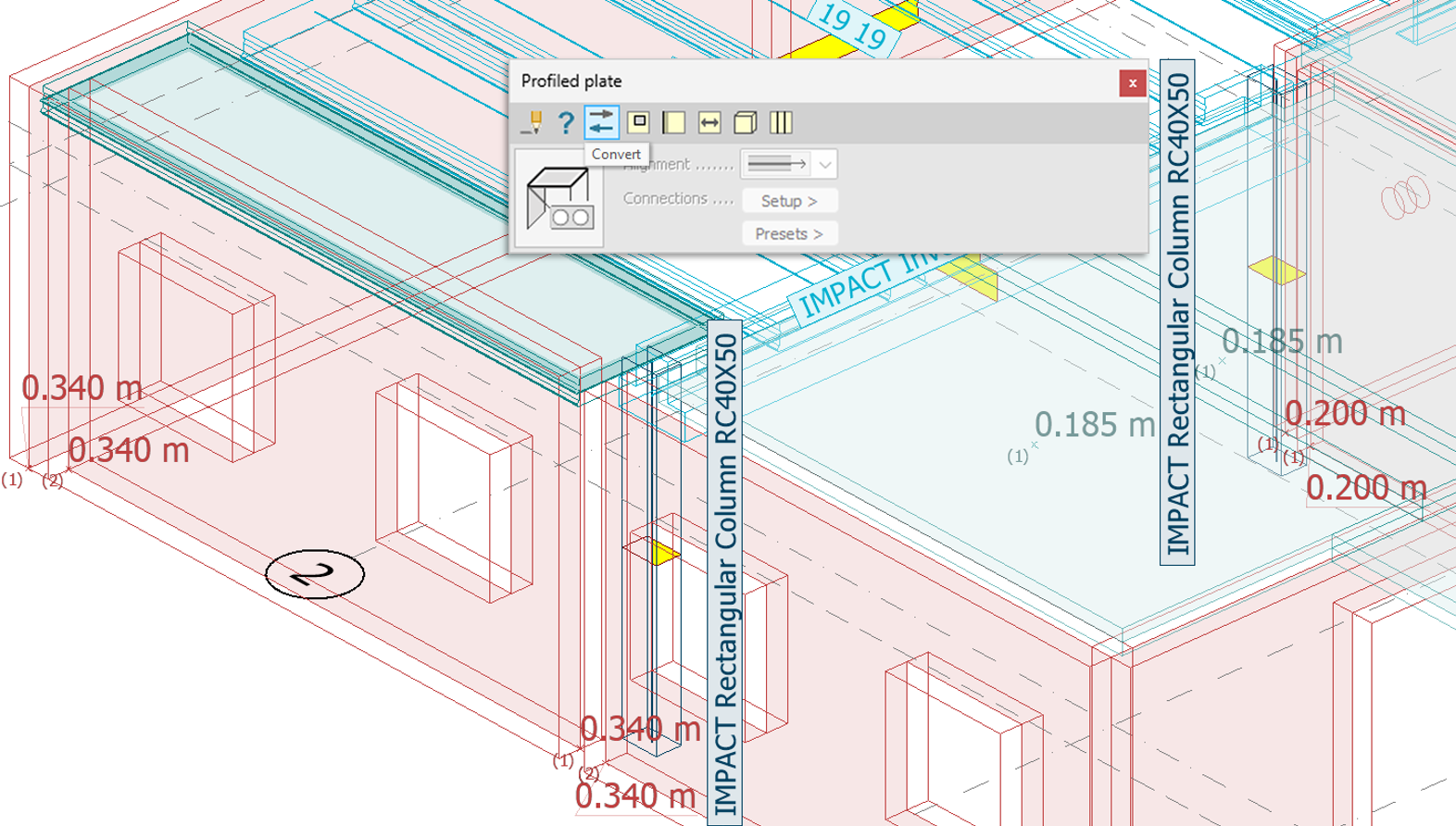
Using the FEM-Design Convert function, profiled beam elements can be transformed – in a single step – into Profiled plate or wall-type shell objects, supporting the intended structural design workflow.
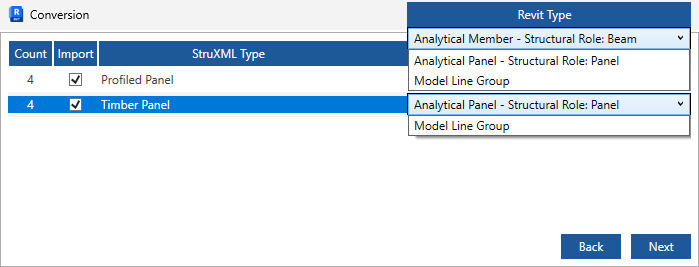
The enhanced connectivity also supports the reverse workflow. Profiled panel shell objects modelled in FEM-Design (such as hollow-core slabs or walls) can be imported into Revit using configurable options:
- as profiled analytical members or reference contour lines (for cut or segmented panels), or
- as simplified, unified physical panel objects.
FEM-Design Timber panels can now be transferred to Revit either as Analytical Panel objects or as reference model line groups representing their original contours.
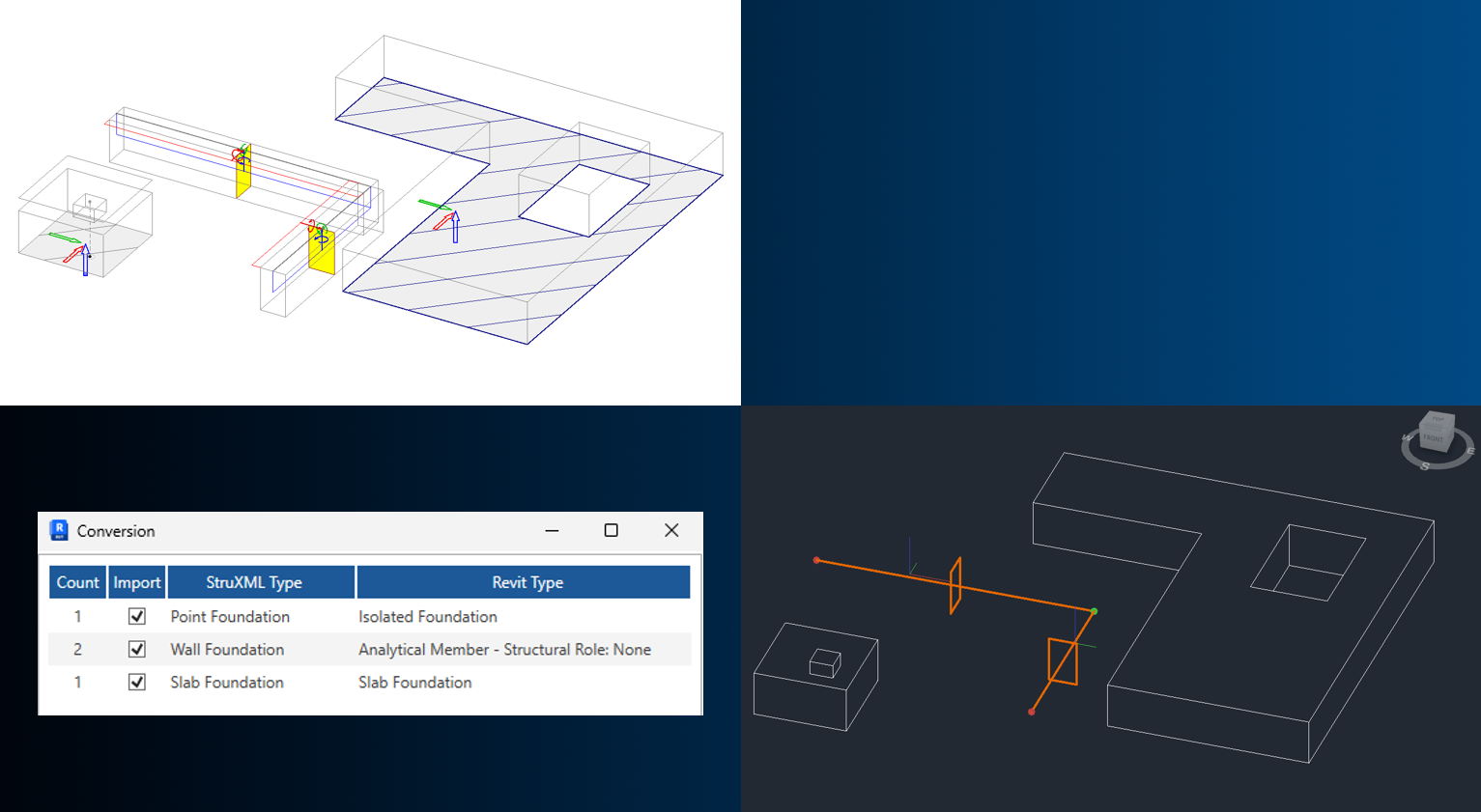
Foundation elements designed in FEM-Design can be transferred to Revit using appropriate representations:
- Isolated and Slab foundations are transferred as physical Revit model objects, as no direct analytical equivalents exist in Revit.
- Wall foundations are transferred as editable profiled analytical members.
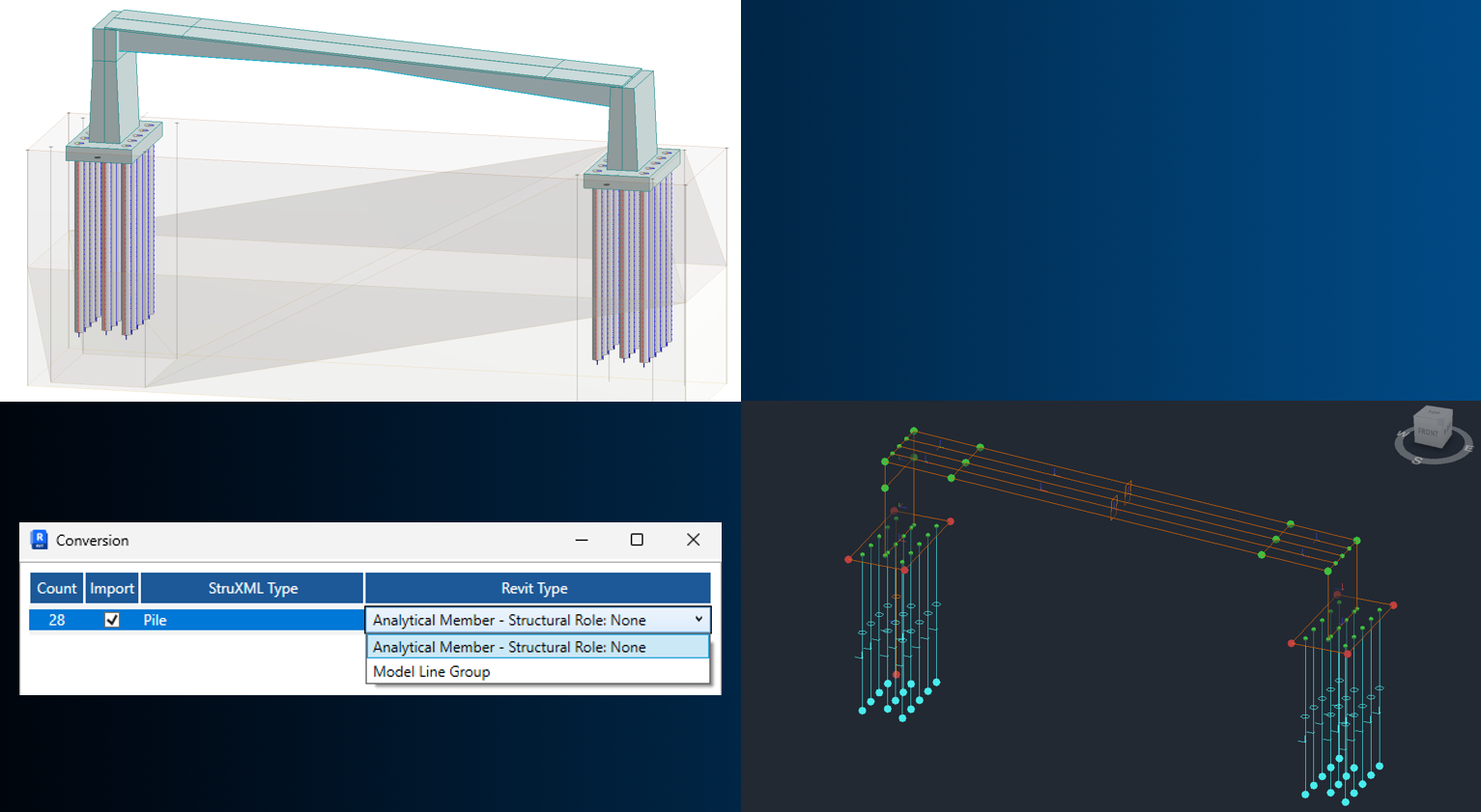
Piles designed in FEM-Design can also be imported into Revit as profiled analytical members or as reference lines, depending on the desired workflow.
Enhanced data mapping and property transfer
Preserving relevant design data across platforms is critical. The enhanced connectivity introduces improved material and cross-section mapping in both export and import directions, as well as a new FEM-Design property transfer capability towards Revit.
When exporting Revit analytical models to FEM-Design, the workflow supports efficient creation and matching of FEM-Design materials and sections through:
- hierarchical database filtering, and
- creation of new FEM-Design sections when no suitable match exists (Create new option).
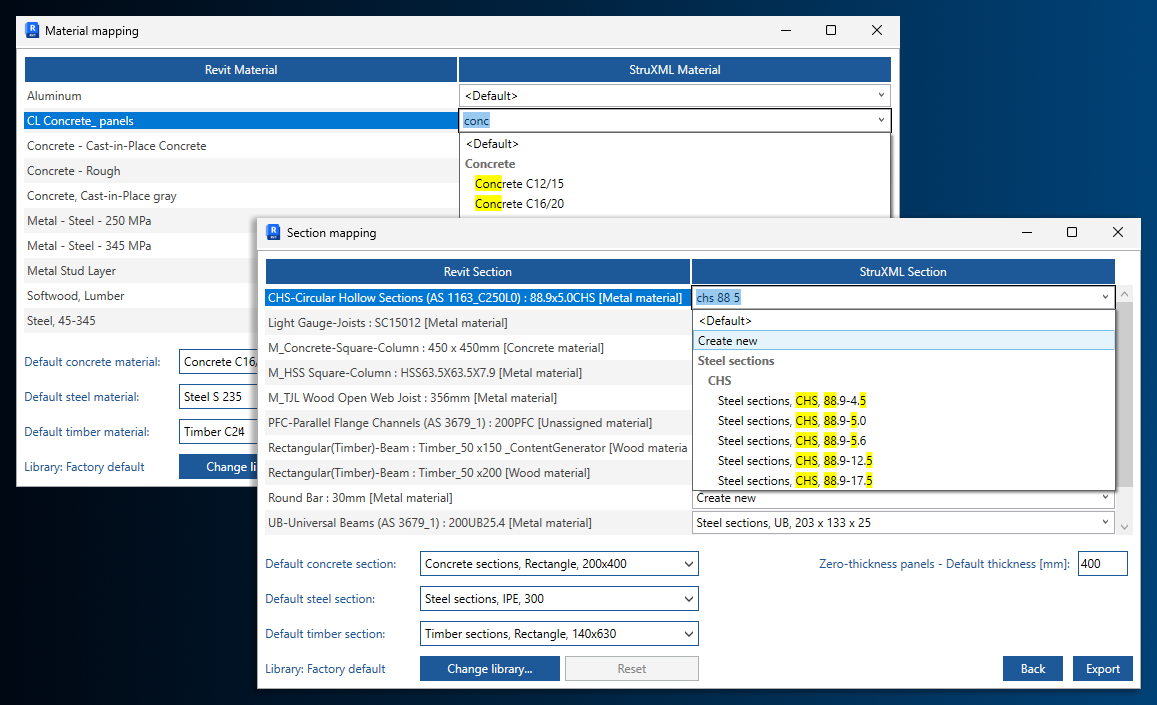
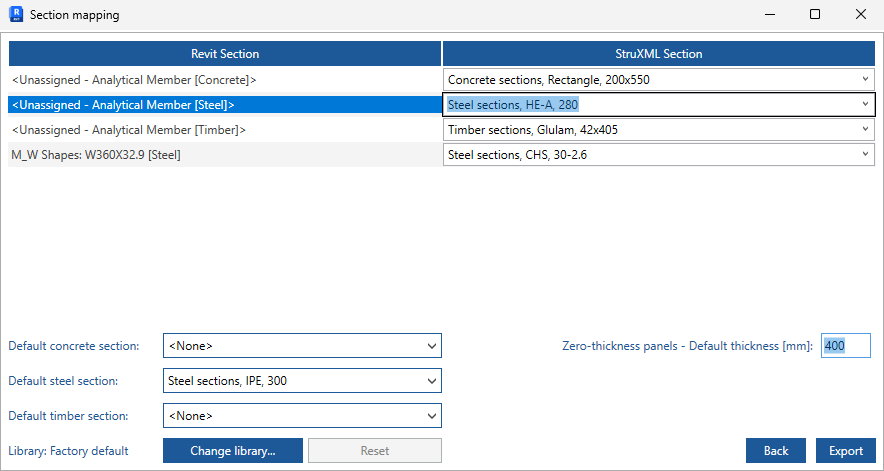
The improved mapping system also allows assigning initial material and/or section/thickness properties to analytical model elements detected and listed as <Unassigned> (i.e. without defined material or section/thickness). Since Revit allows analytical elements to be defined using only axis or region geometry, the following default values can be specified:
- separate default materials for members and for panels without material,
- default sections for members without cross-section, by material type (steel, concrete, and timber),
- a default thickness for panels without thickness.
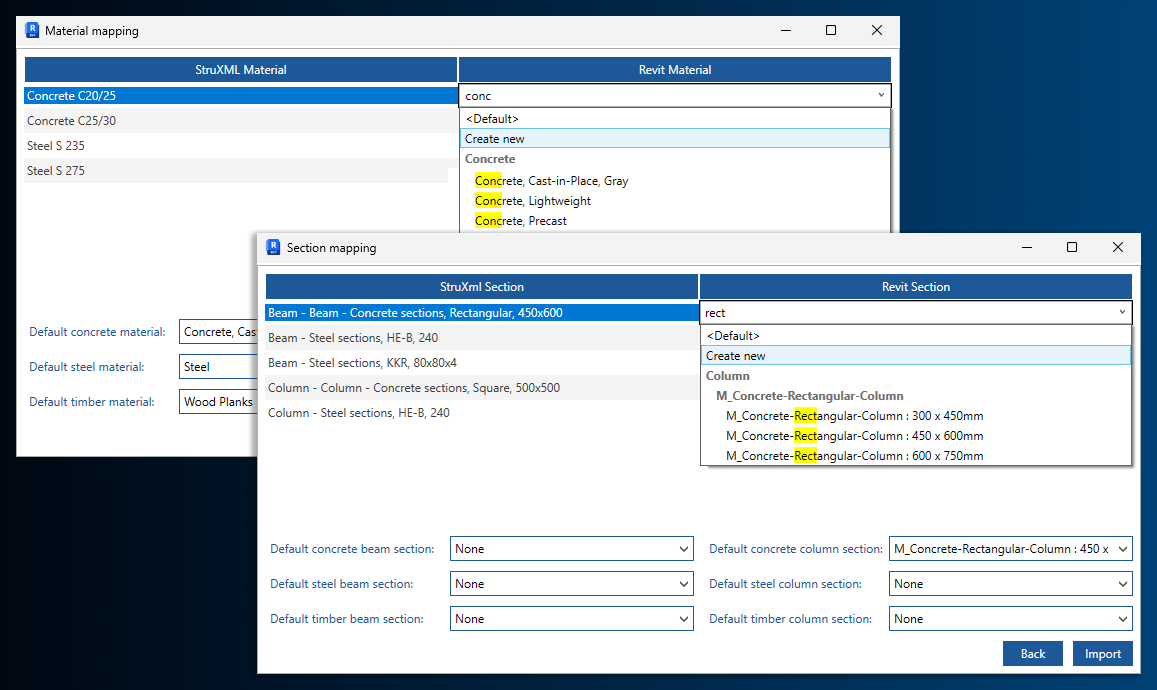
During import of FEM-Design analytical models into Revit, similar filtering and generation options are available. Materials and cross-sections designed in FEM-Design can be created and stored in the Revit project database, ensuring lossless transfer of analysed and designed structural elements.
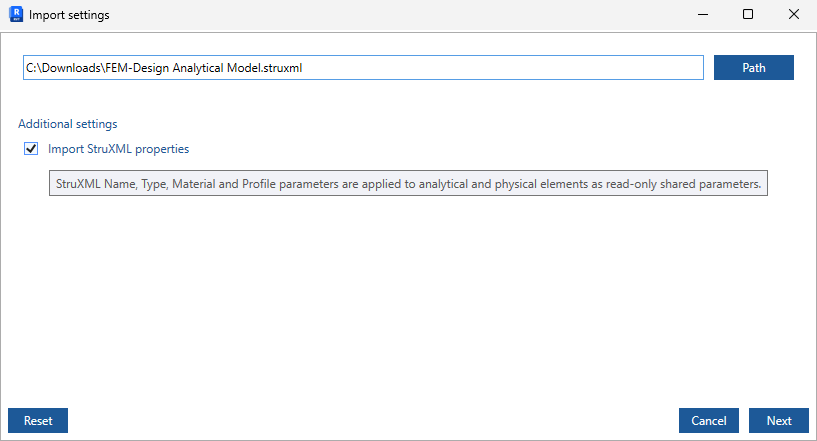
Independently of the chosen mapping strategy, original FEM-Design data – including object type, designed materials and sections, identifiers (FEM-Design ID with position number), and global unique IDs – can be transferred using the new Import StruXML properties option.
After import, Revit analytical objects are created with fully mapped properties that faithfully reflect the FEM-Design design data.
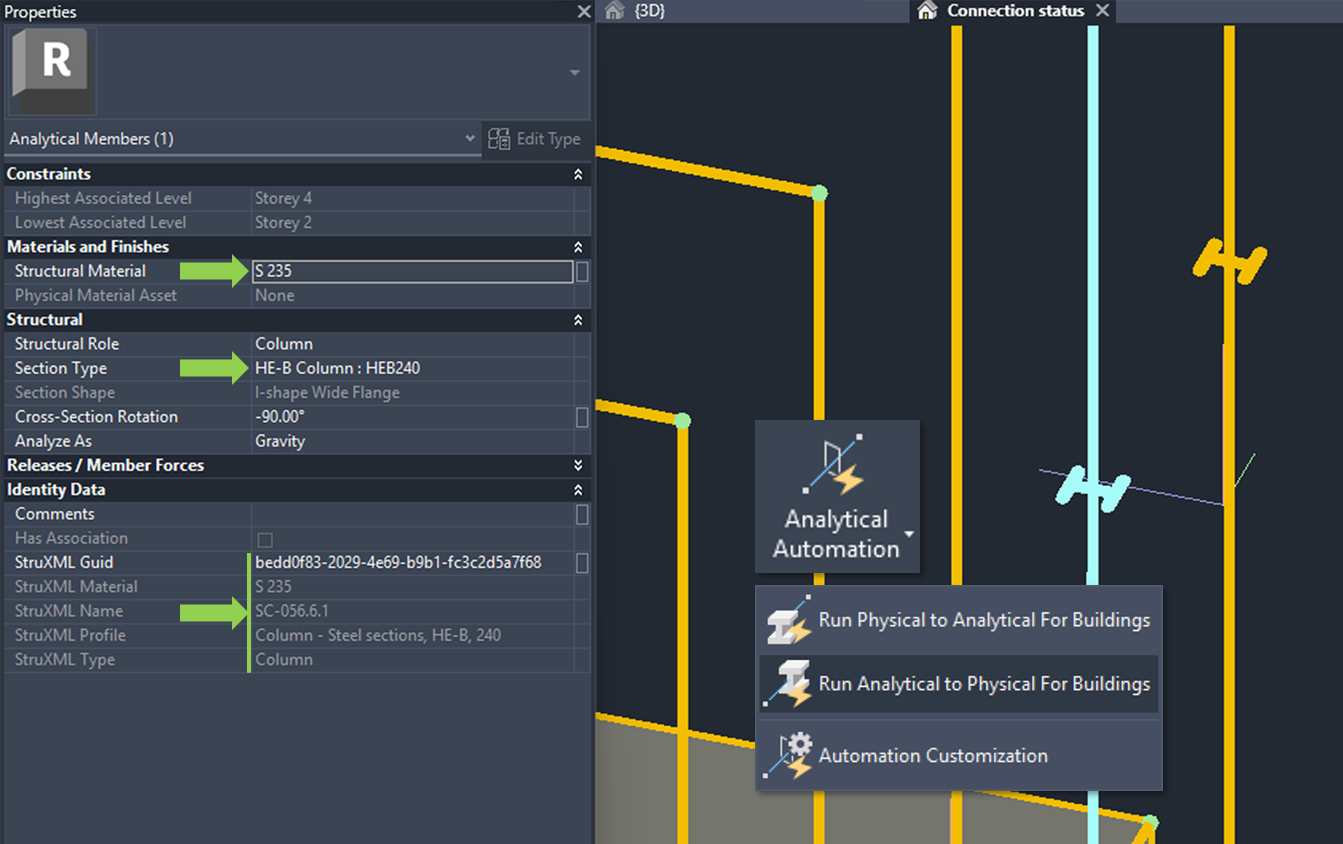
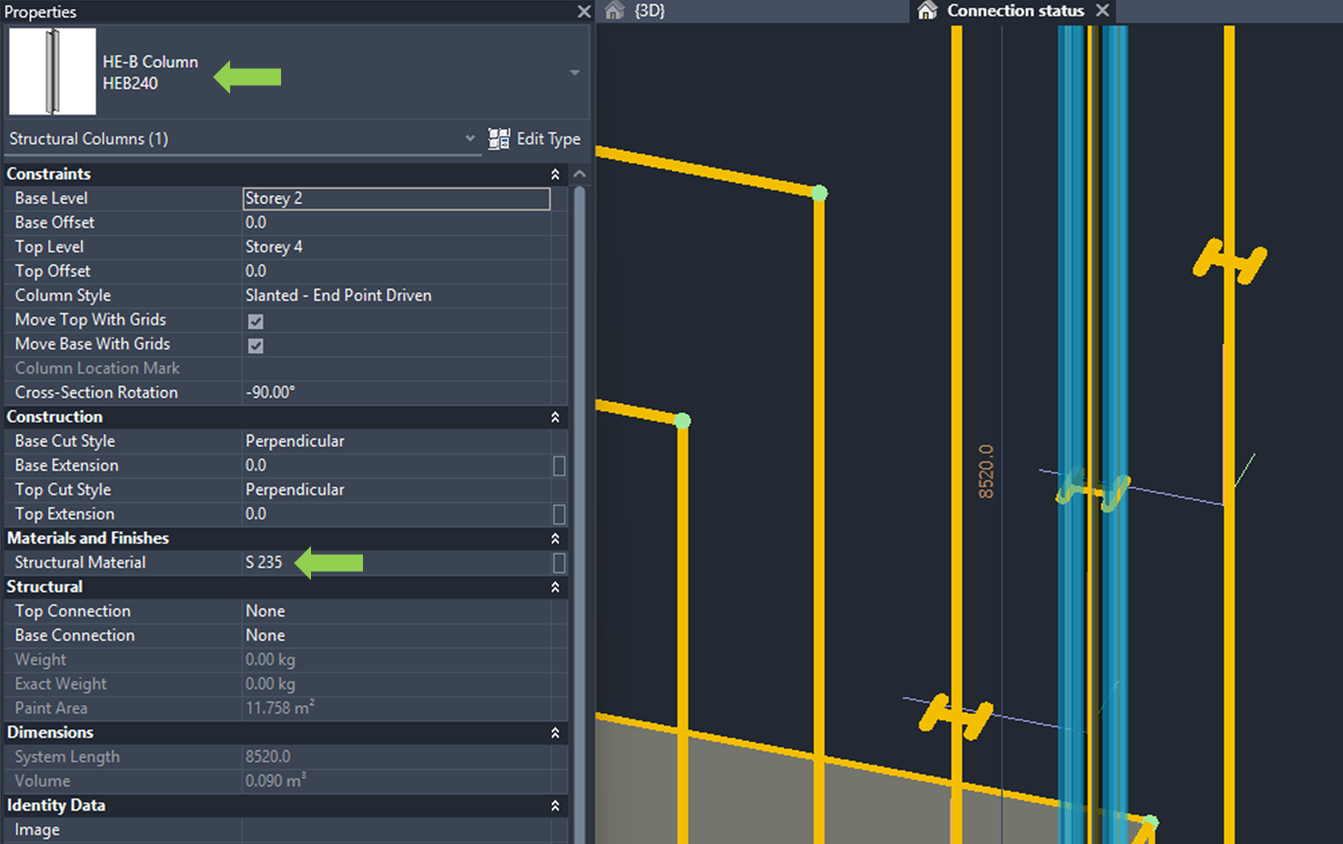
Thanks to the enhanced analytical data mapping provided by the Add-In, physical Revit model elements can be generated reliably using Revit’s Analytical Automation tools.
Flexible model positioning
Accurate positioning is essential in bi-directional BIM coordination and model federation.
The enhanced connectivity introduces export options that provide flexible and predictable model positioning during data exchange.
For analysis and design workflows, engineers typically prefer models located close to the origin and aligned with the global coordinate system. With dedicated export settings, models positioned far from the origin or arbitrarily oriented in Revit can be automatically aligned to the origin and global axes in FEM-Design.
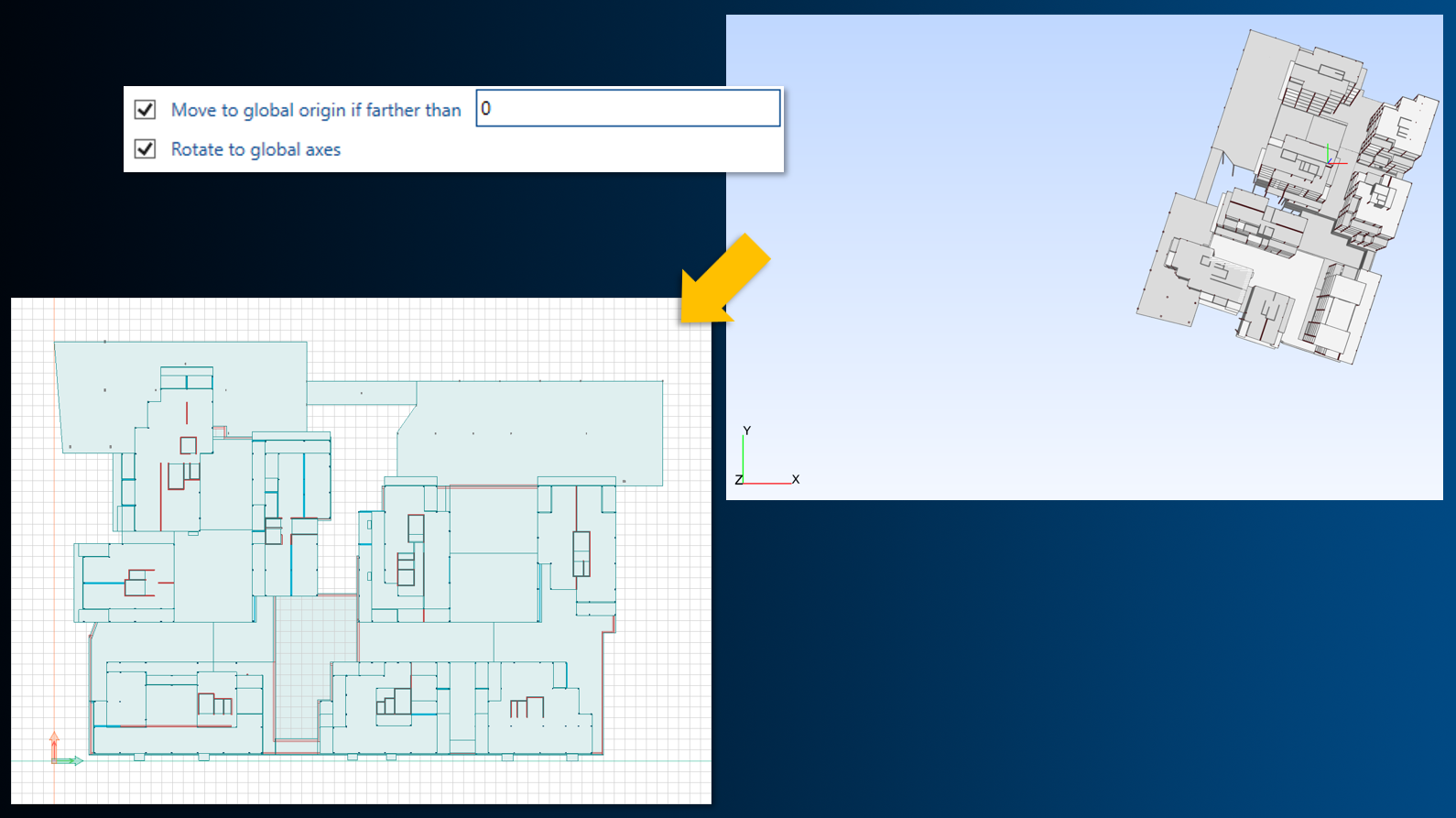
Since these export settings allow Revit models to be repositioned and rotated for analysis purposes, maintaining bidirectional communication requires transforming the model back to its original Revit position. The Add-In handles this automatically during import, as the applied transformation is stored and associated with the originating project.
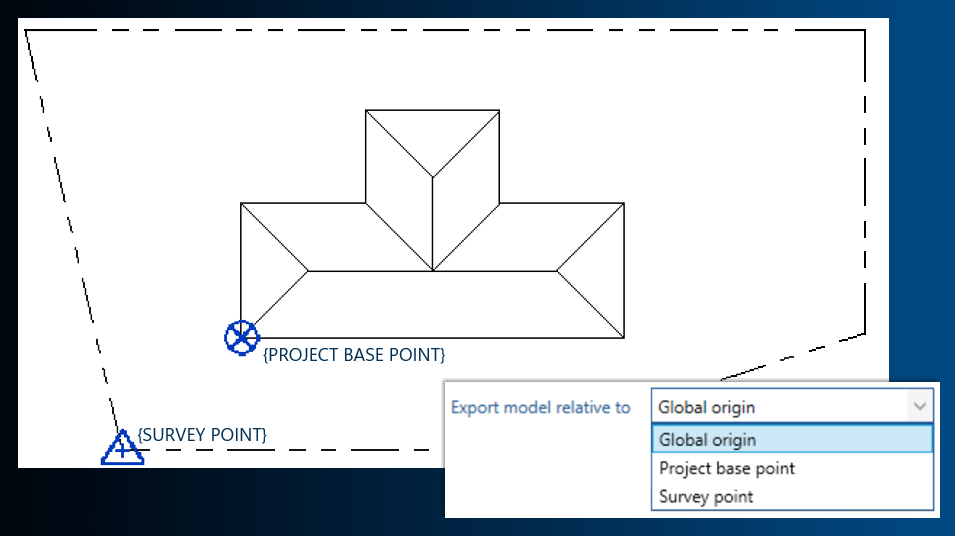
Revit projects support multiple reference systems:
- Global origin
- Project base point
- Survey point
The workflow now allows selecting which reference system the exported model should be relative to, ensuring consistent and controlled positioning.