Essentials
Essentials
These are the essential FEM-Design modelling steps needed for PREFAB to read your model correctly and find equilibrium.
Edge-connections
For PREFAB, it's important to apply edge-connections on all edges interacting with other elements. If they aren't applied, PREFAB can't read the forces and will most likely not be able to find equilibrium.
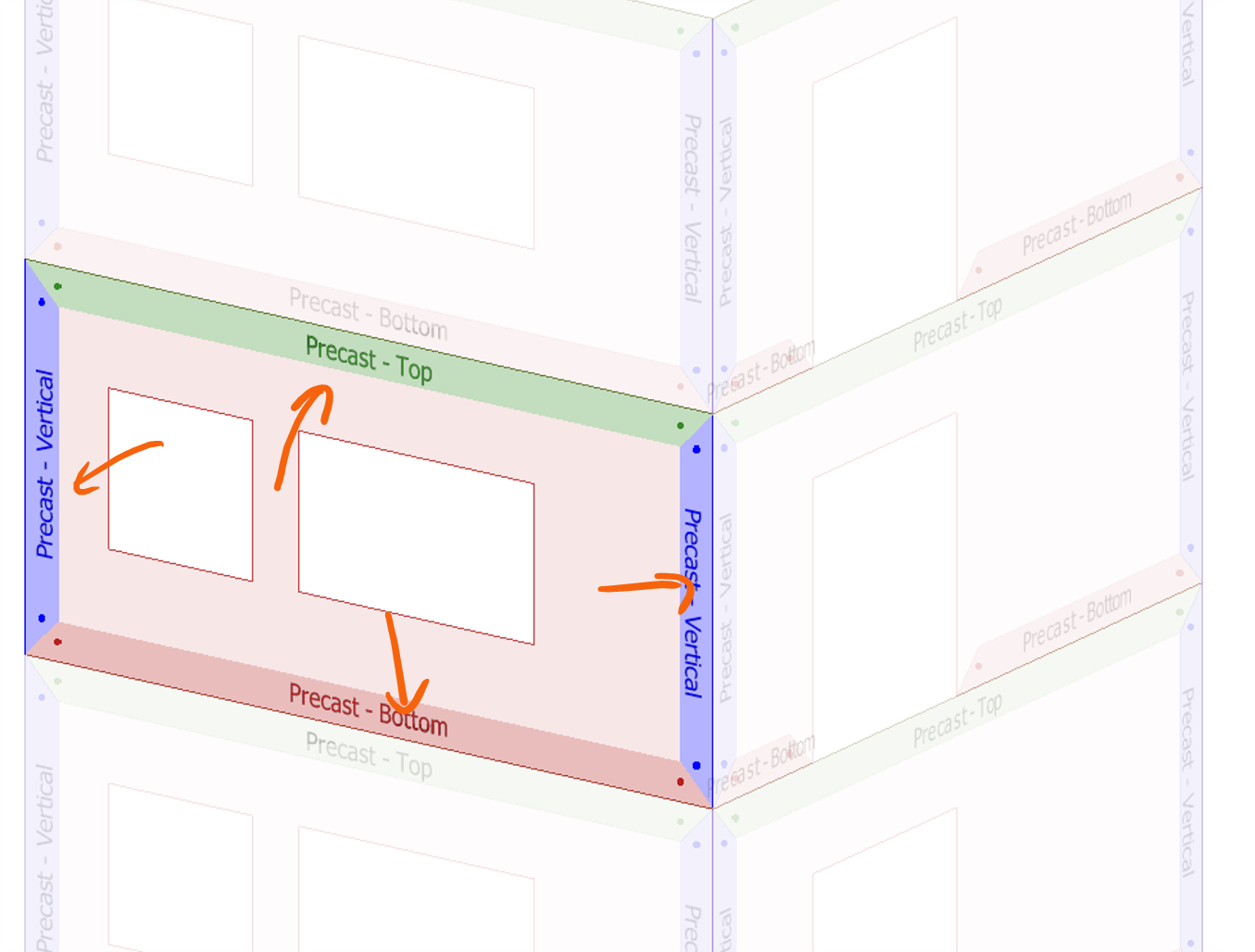
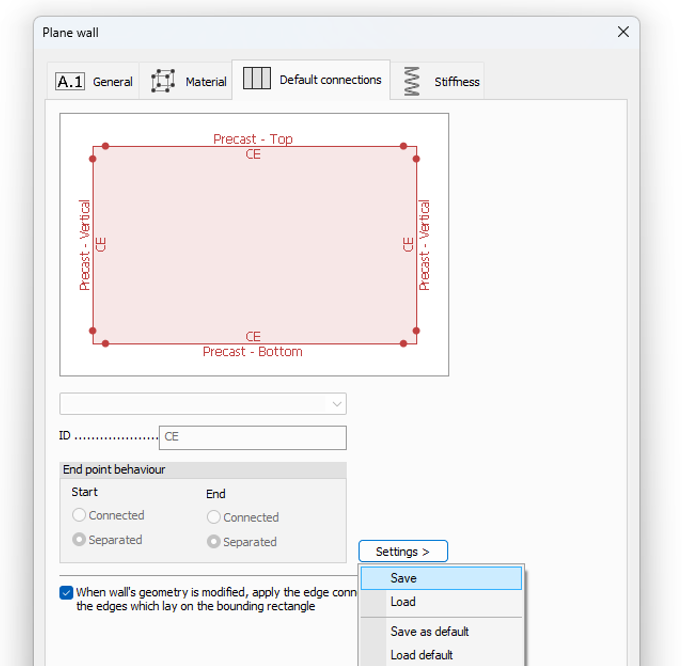
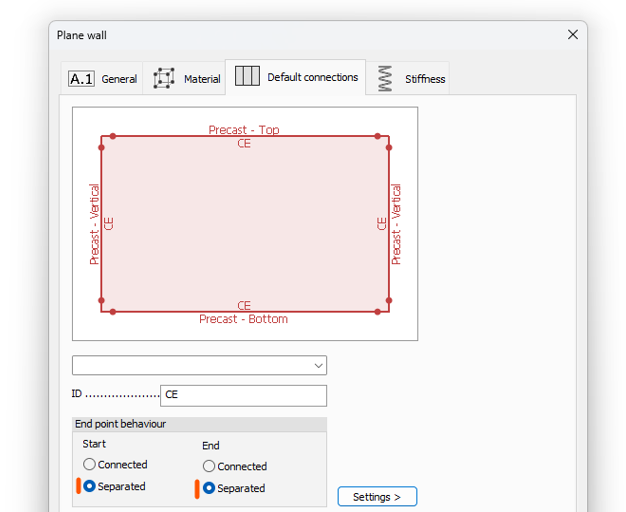
You can apply the edge-connection in the Default connections tab. Define your desired connections and save the setup as a preset.
End-point behavior
This is a finite element technical necessity. To ensure correct results for edge-connection forces, always apply separated end-point behavior. This is visually represented by small dots at the edge of the edge-connection. If they aren't separated, PREFAB will in many cases warn about equilibrium errors.
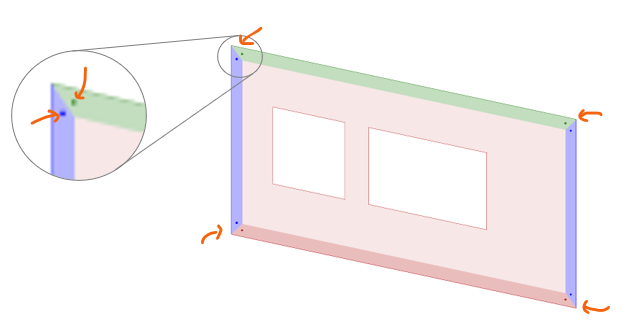
They can be applied in the Default connections tab and saved to the setup with the correct edge-connection types.
Point-connections
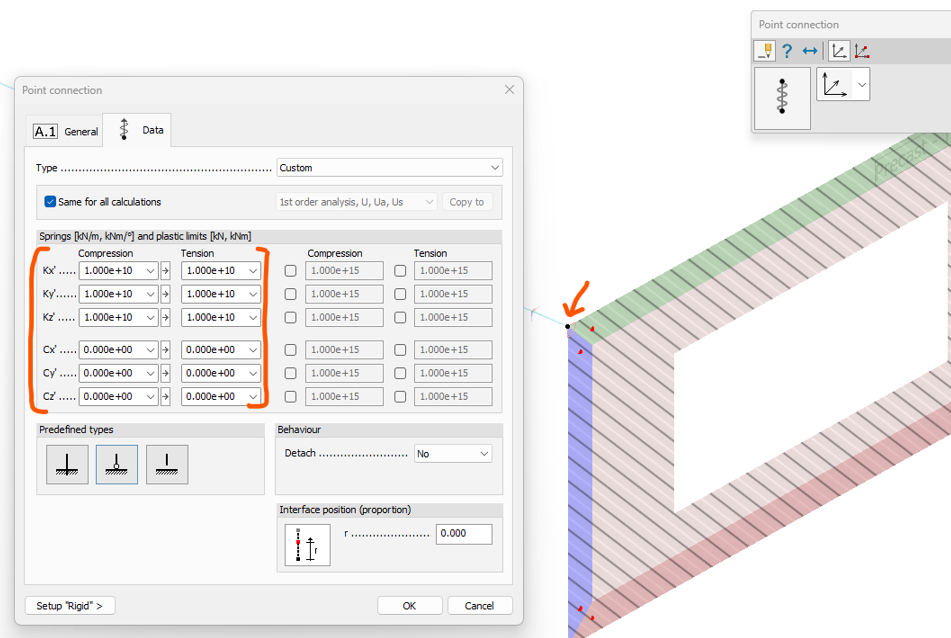
For PREFAB to get the correct information about the interaction between bar elements (both columns and bars), it's important to apply point-connections.
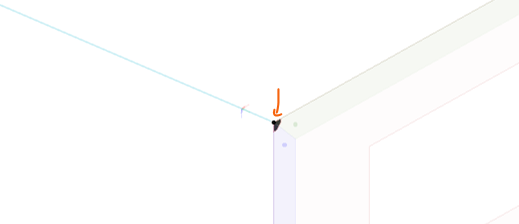
Apply them by setting the desired possibilities of interaction. Define the wall as the Master object, and place the second point on top of the master (if you can't see the tool, set the user interface to Full).
Minimum edge-division number
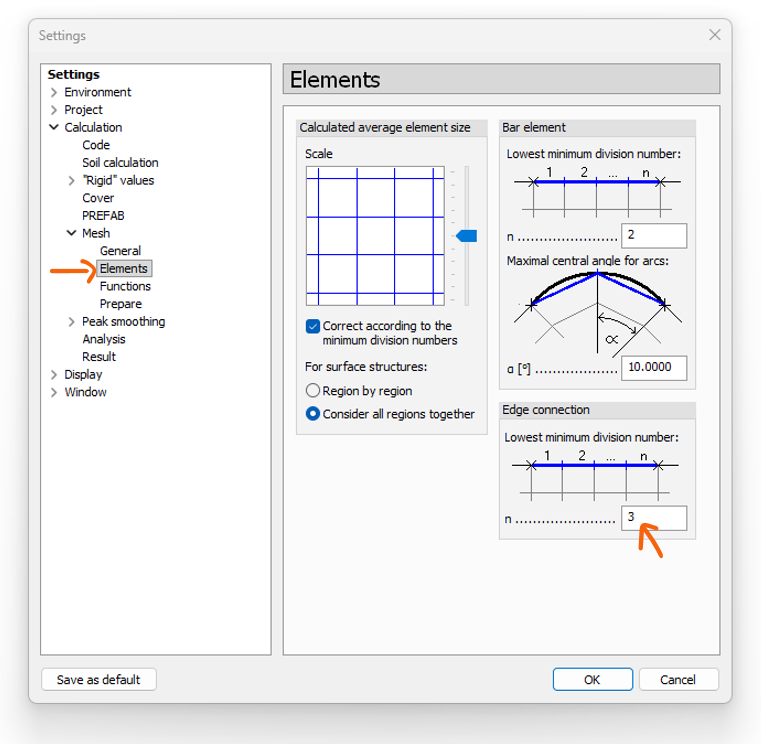
To help ensure good results from FEM-Design, and thereby improve the quality of the data imported to PREFAB, apply a minimum of 3 divisions on the finite elements at all edges.
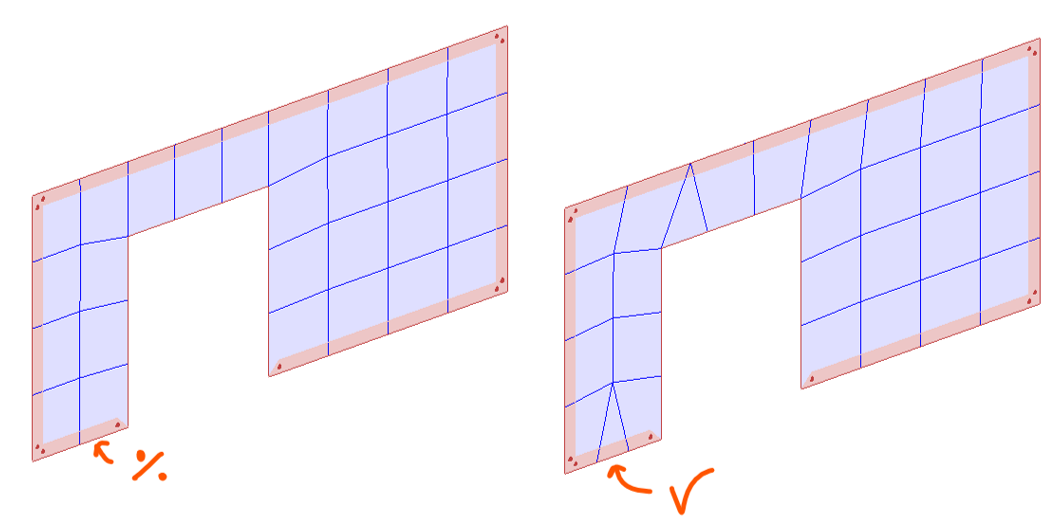
You can manually adjust the division number of edges in the Finite elements tab, or go to the settings menu and change the minimum to a default of 3 – this is the recommended method.
Storey
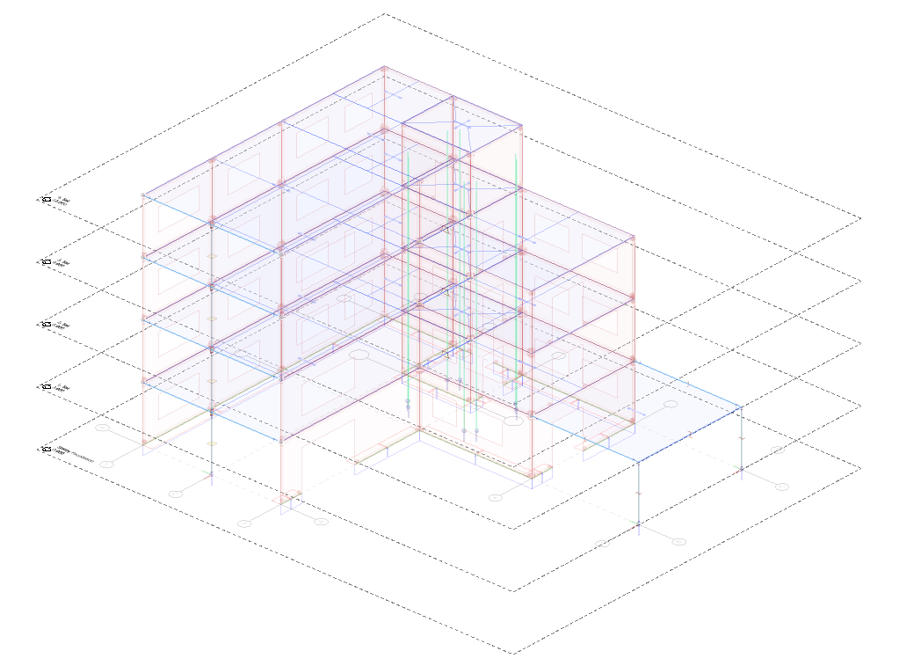
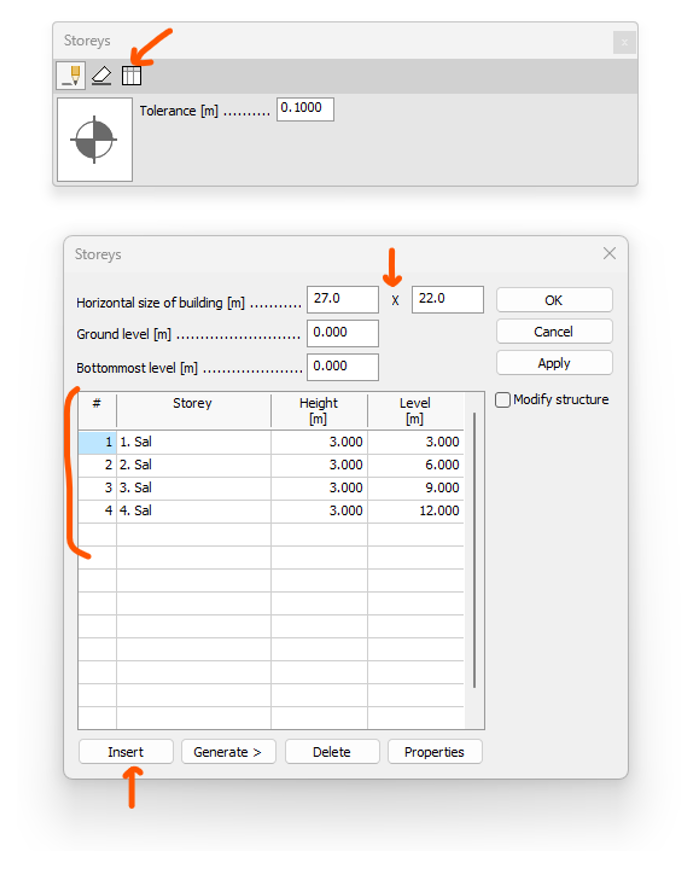
To help with the overview, 3D navigation and exporting options, storeys need to be applied to the model.
Apply these using the Storeys tool, and the edit in table option.
Axis
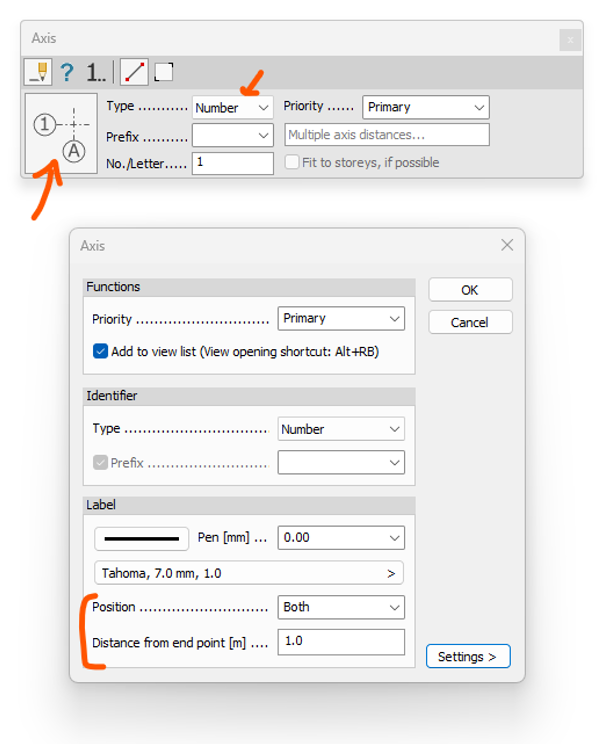
To help with the overview, 3D navigation and exporting options, axes need to be applied to the model.
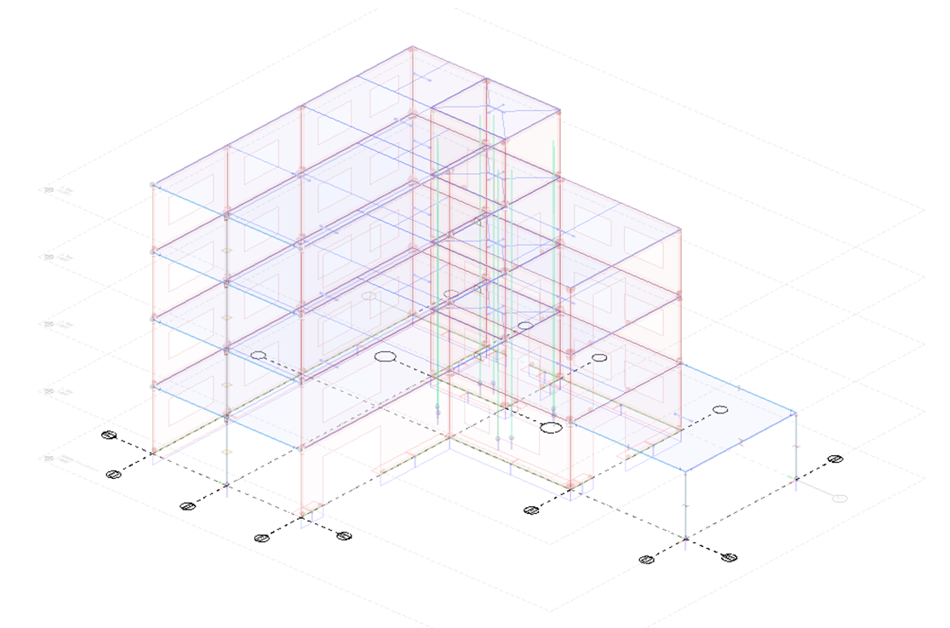
Apply these by using the Axis tool and draw them in the appropriate places. For any walls not placed on an axis plane, a custom axis will be created by PREFAB, named after the closest existing axis.
Assign loads to structure
To avoid ambiguous loads being applied to an undesired element, use the assign to structure option for your loads. It's important for all loads placed at the intersection between structural elements, but in general it's recommended to always use it. In some cases it's not necessary, i.e. surface loads on covers.
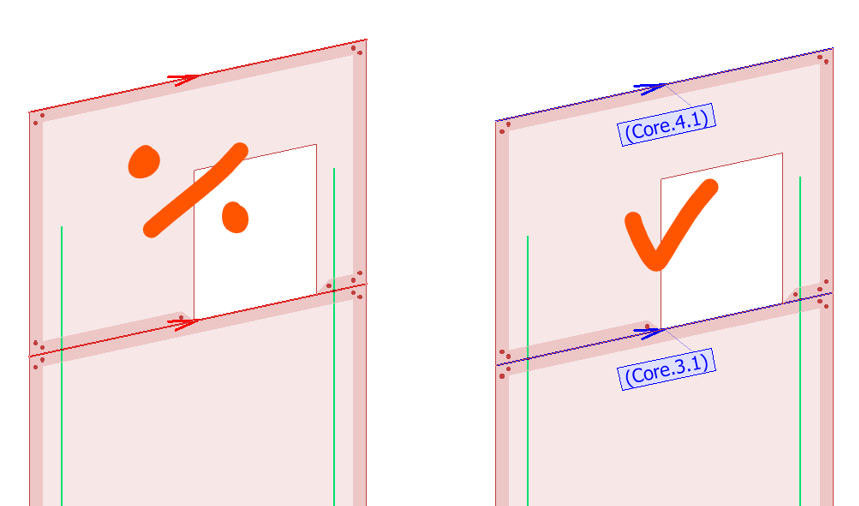
To assign loads to the structure, you can activate the function when defining them – remember you need to first select the structural element before you define the load.
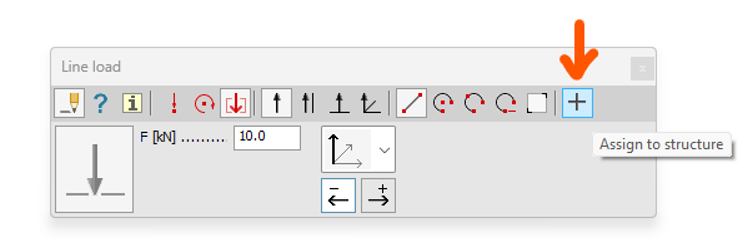
For any loads already defined, you can use the Assign loads to structure tool.