External reference
Use the External reference tool to import 2D and 3D drawings in DWG and DXF formats into the model and use the data as a reference or supplement views with additional data.
When you select the External reference menu item, a new tool palette opens.
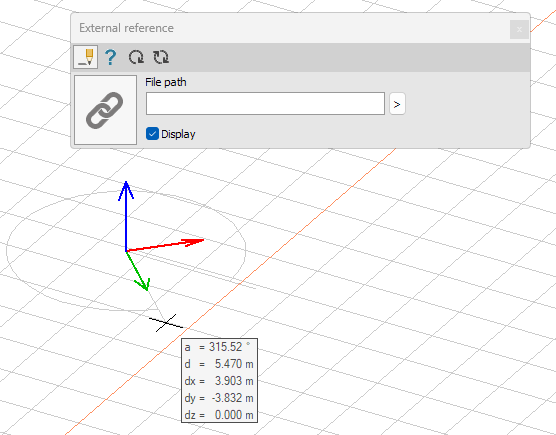
Main tools on the tool palette
| Description | |
|---|---|
 | Use Define tool to add a new reference to the model. |
 | Use Properties tool to check properties of an existing reference. This will open the Default settings dialogue for that reference file. |
 | Use Refresh tool to reload the reference from the source file again. |
 | Use Refresh with different parameters tool to reload the reference from the source file again, but with different parameters for layers, units, colours or insertion point. |
 | Use Default settings tool to change some settings (read below in more detail). |
 | Use the File path tool to manually write the path to the reference file, or use the arrow next to the text box to search for the file using the regular Windows file dialogue. |
 | Use the Display checkbox to change whether the added reference is visible. Invisible references are displayed in the model view as a link symbol with the file path written next to it. Visibility can be turned on and off at any time. |
Default settings
The Default settings tool opens a new dialogue window.

- File path – change the path to the file
- Display – change the visibility of the reference
- Path font – change the font used to display an invisible reference object (only available when the Display checkbox is unchecked)
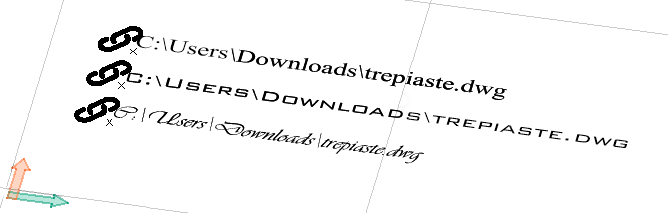
Import parameters
When you have defined the location of the reference in the model space, the import parameters dialogue opens.
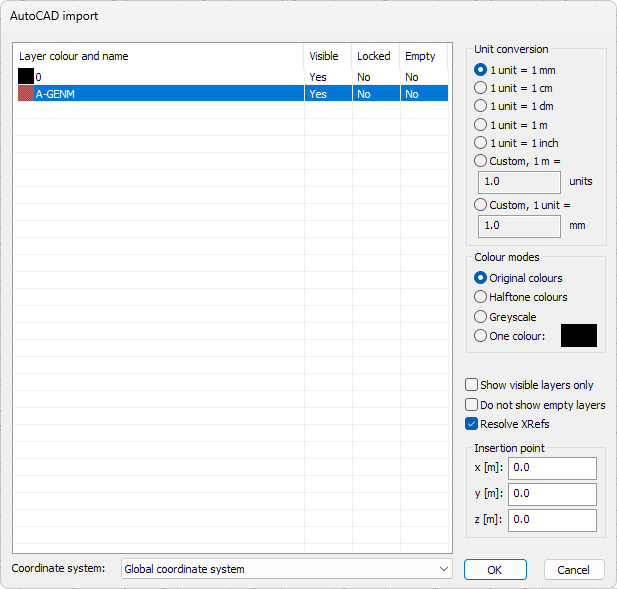
Here the layer list shows the available layers in the file, with some details about them.
- Layers – select the layers you want to import by clicking on the relevant layer. You can also use the SHIFT or CTRL key to make multiple selections
- Unit conversion – choose between different units
- Colour modes – change how the colours will be displayed
- Show visible layers only – show only layers that are set as visible in the file
- Do not show empty layers – show only layers that are not empty
- Resolve XRefs – resolve the XREFs in the reference file
- Insertion point – change the insertion point in the reference file
- Coordinate system – change the coordinate system used for the import