View
View menu contains tools for manipulating the current view, showing/hiding objects and changing their visual style.
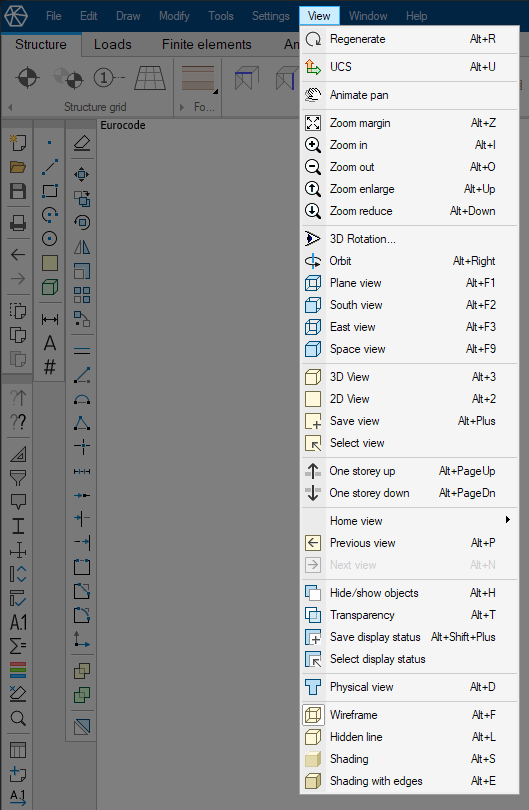
- ↘ Regenerate – regenerate the view with the current settings
- ↘ UCS – change the user coordinate system
- ↘ Animate pan – pan the view by dragging with the mouse
- ↘ Zoom margin – zoom to the extents of the visible elements in the current view
- ↘ Zoom in – define a box and enlarge the view to fit the box area to the current window size
- ↘ Zoom out – define a box and fit the current view in the box area
- ↘ Zoom enlarge – zoom in to 133% of the current view size
- ↘ Zoom reduce – zoom out to 75% of the current view size
- ↘ 3D Rotation... – select a 3D rotation angle from a dialogue window
- ↘ Orbit – rotate the model view freely in 3D space
- ↘ Plane view – rotate the view to a top view regarding the global coordinate system (X-Y plane view)
- ↘ South view – rotate the view to a front view regarding the global coordinate system (X-Z plane view)
- ↘ East view – rotate the view to a right side view regarding the global coordinate system (Y-Z plane view)
- ↘ Space view – rotate the view to a default 3D viewing angle regarding the global coordinate system
- ↘ 3D View – select a 3D view rotation angle from a tool palette
- ↘ 2D View – select a 2D view (section) by using a tool palette
- ↘ Save view – save the current view with a name
- ↘ Select view – pick a view from the predefined and previously saved view list
- ↘ One storey up – move up one storey, if the model has storeys. Only elements connected to this storey are shown
- ↘ One storey down – move down one storey, if the model has storeys. Only elements connected to this storey are shown
- ↘ Home view – define and return to a home view
- ↘ Previous view – go back to the previous view
- ↘ Next view – go forward to the next view (only if you have used the Previous view tool)
- ↘ Hide/show objects – hide or show selected elements
- ↘ Transparency – change transparency for selected elements
- ↘ Save display status – save the effects of the Hide/show objects and Transparency tools on a view with a name
- ↘ Select display status – restore the effects of Hide/show objects and Transparency that were previously saved with the Save display status tool
- ↘ Physical view – turn the physical view for structural elements on and off
- ↘ Wireframe – select the wireframe visual style for structural elements
- ↘ Hidden line – select the hidden line visual style for structural elements
- ↘ Shading – select the shading visual style for structural elements
- ↘ Shading with edges – select the shading with edges visual style for structural elements