Bar reinforcement and section
When Bar reinforcement and section is selected in the subtype selector, the Auto design tool palette provides settings for section candidates, reinforcement detailing, and automatic design execution.
Tool palette

The Auto design tool palette contains the following tools and options:
-
Parameters – select a suitable bar object and open the parameter dialogue for section and reinforcement settings.
-
Design – opens a dialogue run auto design with the current settings for the selected bars.
-
Calculation – only while Design is selected, lets you choose Load combinations or Load groups as the design basis.
-
Display table – checkbox that shows the utilization table when enabled.
Parameters dialogue
After you start Parameters, you are prompted to select a suitable bar object. The dialogue then opens with two tabs: Cross section and Reinforcement.
Cross section tab
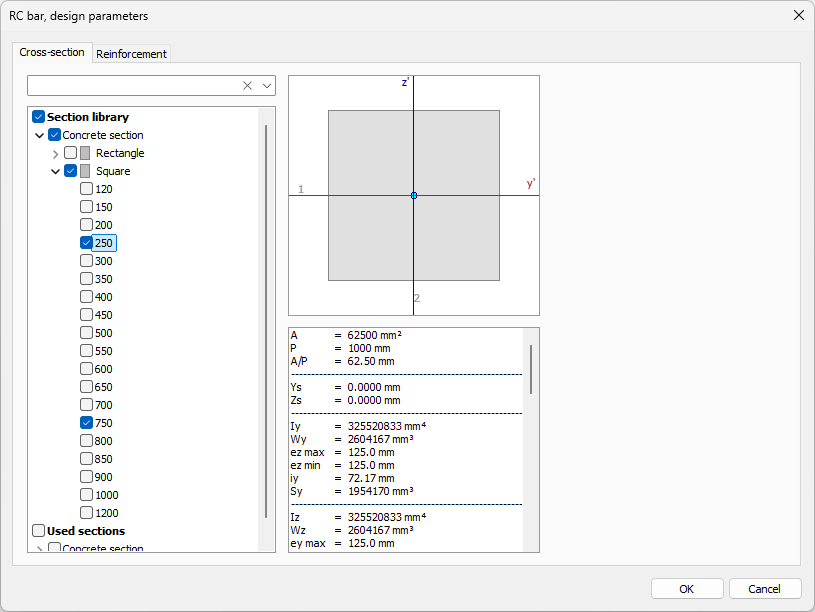
Use this tab to define which section types are allowed during auto design.
-
Section library (left side) – browse and filter available sections using the regular search function.
-
Allowed section selection – mark checkboxes in front of sections to include them as allowed options for bar design.
-
Section preview and data (right side) – review section shape and the main section parameters for the currently selected item.
Reinforcement tab
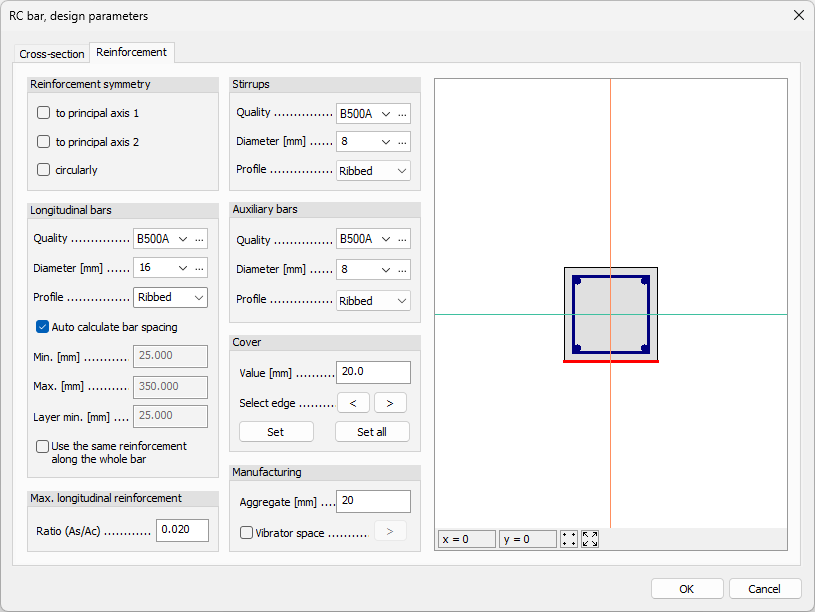
This tab is divided into groups for symmetry, bars, steel options, cover, and manufacturing constraints.
Reinforcement symmetry
-
to principal axis 1 – apply symmetry relative to principal axis 1.
-
to principal axis 2 – apply symmetry relative to principal axis 2.
-
circularly – apply circular reinforcement symmetry.
Longitudinal bars
-
Quality – drop-down list with available reinforcing steel materials from the library.
-
Quality library button (...) – open reinforcing steel library settings.
-
Diameter – drop-down list with available bar diameters.
-
Diameter library button (...) – open diameter/library settings.
-
Profile – choose bar profile type:
- Smooth
- Ribbed
-
Auto-calculate bar spacing – checkbox for automatic spacing calculation.
-
Min. – manual minimum spacing, available when automatic spacing is disabled.
-
Max. – manual maximum spacing, available when automatic spacing is disabled.
-
Layer min. – manual minimum clear distance between bar layers, available when automatic spacing is disabled.
-
Use the same reinforcement along the whole bar – keep one reinforcement arrangement along the full bar length.
Max longitudinal reinforcement
- Ratio – numeric field for the maximum reinforcement ratio between concrete and steel.
Stirrups
-
Quality – drop-down list for steel quality selection.
-
Quality library button (...) – open steel quality library settings.
-
Diameter – drop-down list for steel diameter selection.
-
Diameter library button (...) – open diameter/library settings.
-
Profile – choose bar profile type:
- Smooth
- Ribbed
Auxiliary bars
-
Quality – drop-down list for steel quality selection.
-
Quality library button (...) – open steel quality library settings.
-
Diameter – drop-down list for steel diameter selection.
-
Diameter library button (...) – open diameter/library settings.
-
Profile – choose bar profile type:
- Smooth
- Ribbed
Cover
-
Value – numeric field for concrete cover.
-
Previous edge / Next edge – cycle through edges and review or set edge-specific cover values.
-
Set – apply the current cover value to the currently selected edge.
-
Set all – apply the current cover value to all edges.
Manufacturing
-
Aggregate – numeric field for aggregate size.
-
Vibration space – checkbox that enables vibration space handling.
-
Edit vibrator space – button enabled only when Vibration space is checked; opens a dedicated vibration space dialogue.
In the Edit vibrator space dialogue, you define a rectangle in the local coordinate system using:
-
Left – left coordinate of the vibrator space rectangle.
-
Right – right coordinate of the vibrator space rectangle.
-
Bottom – bottom coordinate of the vibrator space rectangle.
-
Top – top coordinate of the vibrator space rectangle.
The right side of this dialogue shows the bar section preview, including selected cover edge, vibrator space, and reinforcement bar sizes.
Design tool
Use Design to select suitable bar objects in the model view and design them with the currently selected parameters. You can run design with or without the utilization table open.
When Display table is checked and you start Design, a Utilization table opens.
Utilization table structure
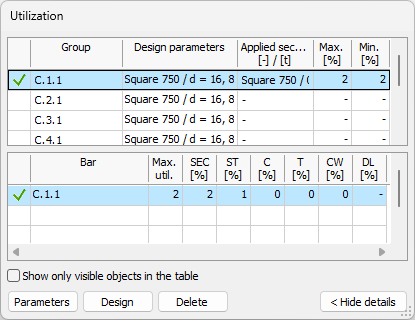
The Utilization table is split into two tables:
-
Groups table (top) – shows design groups and ungrouped single elements.
-
Element details table (bottom) – shows detailed utilization results for elements in the selected group, or for the selected ungrouped single element.
Groups table columns
-
Passed – unnamed status column that shows if design has been run and what the result is: green tick mark means the group is designed with utilization below 100%, while red stop sign means design failed or utilization is above 100%.
-
Group name – group name, or the element name when the row is an ungrouped single element.
-
Design parameters – short overview of the selected design parameters for the group or element.
-
Applied section/Total weight – applied section together with total weight.
-
Max – maximum utilization within the group.
-
Min – minimum utilization within the group.
Element details table columns
-
Passed – unnamed status column with the same icon logic as in the groups table (green tick mark or red stop sign).
-
Element name – name of the element.
-
Max. util. – maximum value from all design calculations made for the element.
-
SEC – section utilization.
-
ST – stirrup utilization.
-
C – concrete utilization.
-
T – torsional reinforcement utilization.
-
CW – crack width utilization.
-
DL – deflection utilization.
Table options and buttons
Below the element details table, the following controls are available:
-
Show only visible objects in the table – limits table rows to currently visible objects.
-
Parameters – opens the same Parameters dialogue as in the tool palette, for the selected group or element.
-
Design – runs design for the selected element in the table.
-
Delete – deletes the added quantity from the selected element.