Parametric reinforcement
Parametric reinforcement
Use Parametric reinforcement to define manual reinforcement rules for selected concrete bars before placing or adjusting reinforcement. This function gives you control over how reinforcement is generated and updated.
This tool is only available for bar-type elements.

Tool palette
When you start Parametric reinforcement, a tool palette opens for defining or updating reinforcement rules for selected bars.

Main tools
-
Define – apply the current parametric reinforcement settings to selected bar elements
-
Properties – check or edit properties of existing parametric reinforcement setups. Opens the Default settings dialogue for selected regions
-
Default settings – open the default settings dialogue to define reinforcement rules and values used by the tool (read below in more detail)
Additional functions
-
Rectangular bar – set the reinforcement mode for rectangular bar sections
-
Circular bar – set the reinforcement mode for circular bar sections
-
Beam-like reinforcement – only for rectangular bars, configure longitudinal bars and stirrups using beam-oriented detailing logic
-
Column-like reinforcement – only for rectangular bars, configure longitudinal bars and stirrups using column-oriented detailing logic
Default settings dialogue
When you open Default settings or Properties, the same dialogue window opens.
This dialogue contains three tabs: General, Stirrups, and Longitudinal bars.
Parameters in this dialogue window depend on the selected bar type. For Rectangular bar, the dialogue includes the Beam-like reinforcement and Column-like reinforcement options. For Circular bar, the dialogue only includes parameters relevant to circular sections.
Rectangular bar settings
General tab
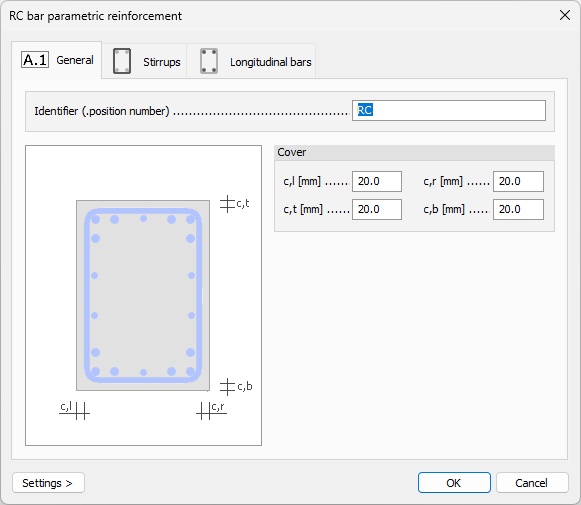
- Identifier – text field for a user-defined reinforcement setup name
Cover
-
c,l – numeric field for left concrete cover
-
c,r – numeric field for right concrete cover
-
c,t – numeric field for top concrete cover
-
c,b – numeric field for bottom concrete cover
Stirrups tab
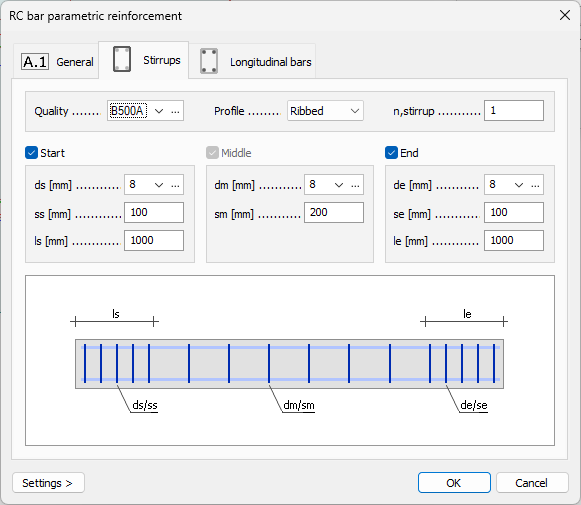
The Stirrups tab is organized into a top part, a middle part, and a bottom schematic representation.
Top part
-
Quality – drop-down menu for stirrup steel quality, with an Edit library button next to it
-
Profile – drop-down menu with Ribbed and Smooth options
-
n,stirrup – numeric field for number of stirrups, available only for Beam-like reinforcement
Middle part
The middle part is split into Start, Middle, and End zones.
-
ds / dm / de – diameter drop-down menus for start, middle, and end zones, each with an Edit library button
-
ss / sm / se – numeric fields for stirrup spacing in start, middle, and end zones
-
ls / le – numeric fields for start and end zone lengths; the middle zone length is defined by the remaining bar length between start and end zones
Bottom part
Contains a schematic bar view showing dimensional designators used in the tab
Longitudinal bars tab
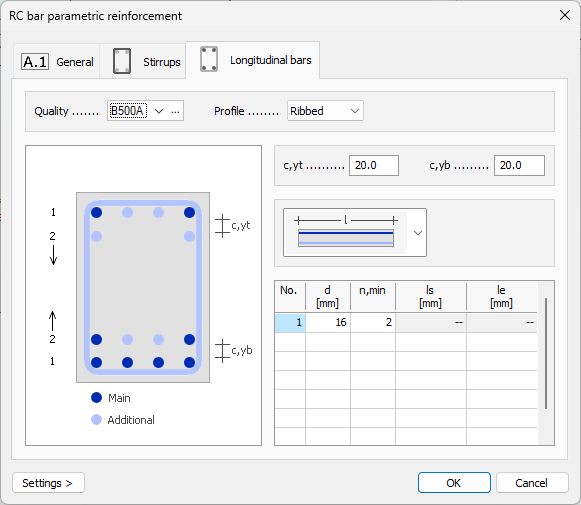
The Longitudinal bars tab is split into a top part and a bottom part.
Top part
-
Quality – drop-down menu for longitudinal bar steel quality, with an Edit library button
-
Profile – drop-down menu with Ribbed and Smooth options
Bottom part
The left side shows a cross-section image with designators, and the right side contains parameters. The available image and parameters depend on whether Beam-like reinforcement or Column-like reinforcement is selected.
Beam-like reinforcement parameters
-
c,yt – numeric field for y-direction distance between top rebar layers
-
c,yb – numeric field for y-direction distance between bottom rebar layers
-
Bar set selector – drop-down menu with five graphical options:
- Main, top
- Additional, top, start
- Additional, top, end
- Main, bottom
- Additional, bottom, middle
In the bottom part, there is an editable table for the currently selected bar set. In the table you can add rows for each layer of reinforcement in the current bar set. The table has these columns:
- No. – number of the layer
- d – diameter of the bars in the layer
- n,min – minimum number of bars in the layer
- ls – length of the reinforcement bars from the start of the bar element; or start distance of the bottom middle reinforcement bars from the start of the bar element
- le – length of the reinforcement bars from the end of the bar element; or end distance of the bottom middle reinforcement bars from the end of the bar element
Column-like reinforcement parameters
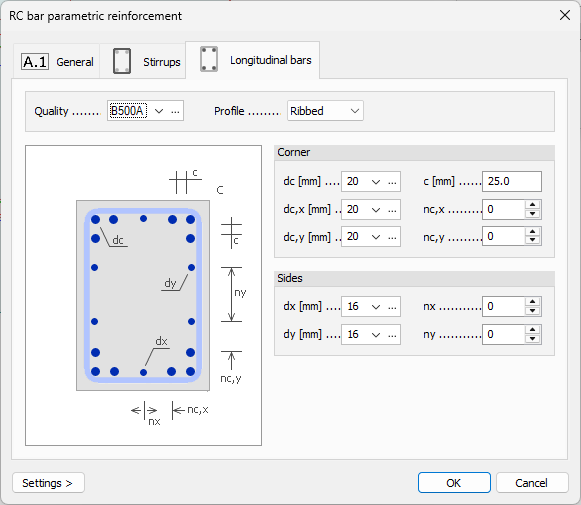
Corner
-
dc – drop-down menu for corner bar diameter, with an Edit library button
-
dc,x – drop-down menu for bar diameter on the x-direction side, with an Edit library button
-
dc,y – drop-down menu for bar diameter on the y-direction side, with an Edit library button
-
c – numeric field for distance between corner bars
-
nc,x – numeric field for number of bars on the x-direction side
-
nc,y – numeric field for number of bars on the y-direction side
Sides
-
dx – drop-down menu for side bar diameter in x-direction, with an Edit library button
-
dy – drop-down menu for side bar diameter in y-direction, with an Edit library button
-
nx – numeric field for number of bars on the x-direction side
-
ny – numeric field for number of bars on the y-direction side
Circular bar settings
The Circular bar default settings dialogue has the same three tabs: General, Stirrups, and Longitudinal bars.
General tab
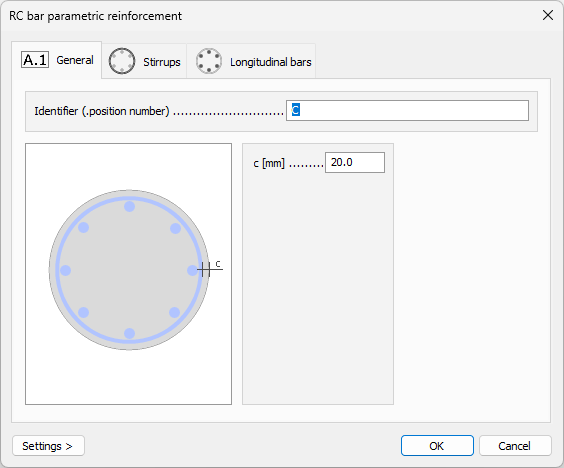
-
Identifier – text field for a user-defined reinforcement setup name
-
c – single numeric field for concrete cover
Stirrups tab
The Stirrups tab is identical to the Column-like reinforcement stirrups settings used for rectangular bars.
Longitudinal bars tab
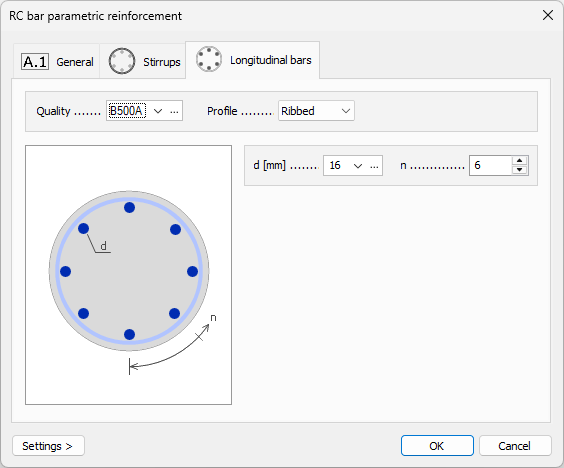
Top part
-
Quality – drop-down menu for longitudinal bar steel quality, with an Edit library button
-
Profile – drop-down menu with Ribbed and Smooth options
Bottom part
The left side shows a cross-section image with designators, and the right side contains parameters.
-
d – drop-down menu for longitudinal bar diameter, with an Edit library button
-
n – numeric field for number of longitudinal bars in the section