The interactive PDF report
The interactive PDF report
The dynamic PDF report is the original and primary function of PREFAB: it turns FEM-Design results into design-ready documentation of the load take-down, serving as the foundation for component design. The report compiles floor plans, elevations and bar element tables for the whole project – with toggleable layers, tooltips and per-component drill-down.
In addition to the front page and table of contents, the report typically holds three main content blocks: floor plans, elevations and bar elements. The main content can be adjusted before printing, so the report only holds what your project needs.
The interactive features require a supported PDF viewer – check the supported PDF viewers.
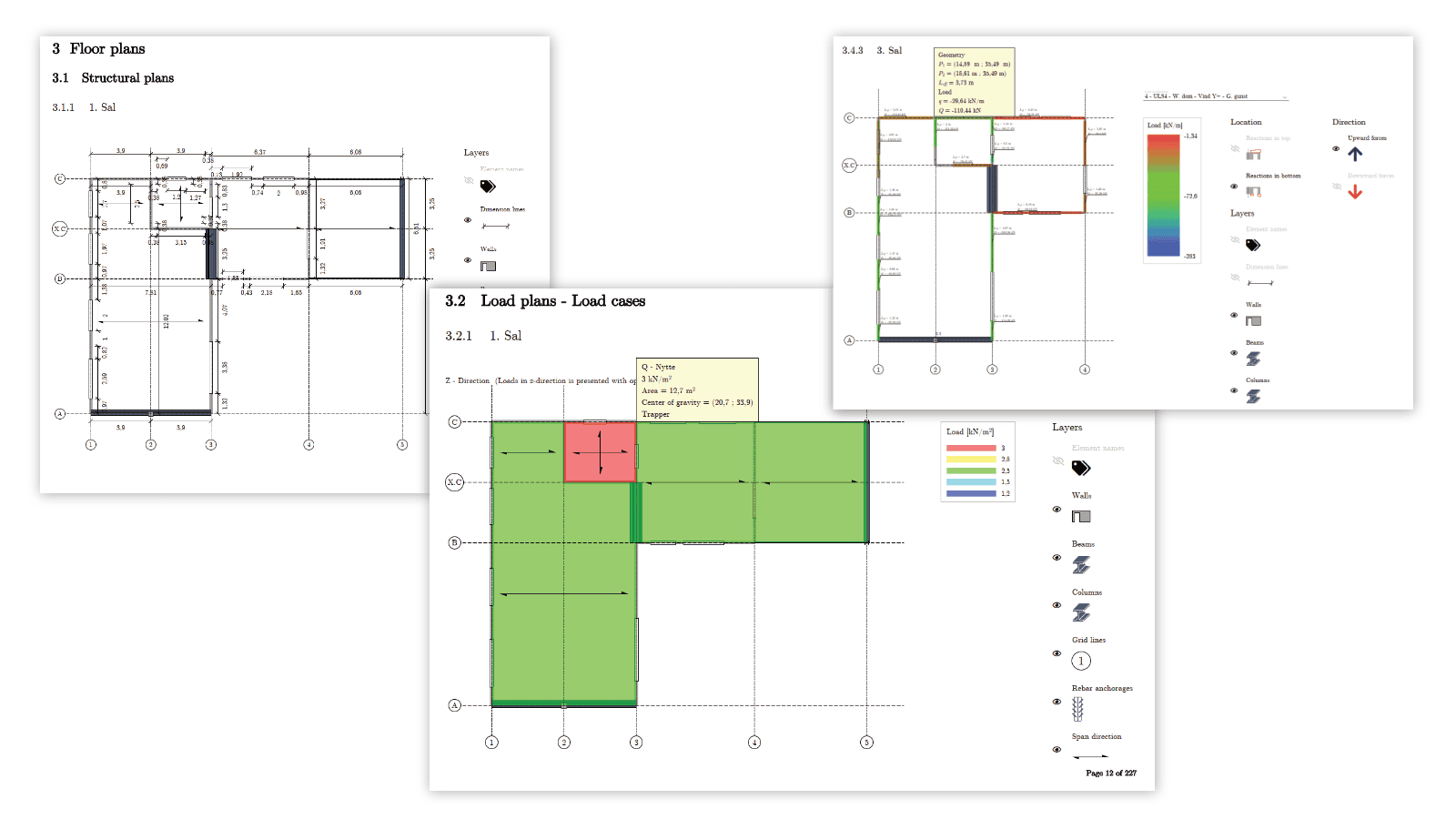
Floor plans
Each storey is documented with:
-
Structural plan – the geometry specifications and material properties
-
Load plans – one plan per load case and load combination
-
Results – load combination results with interactive tooltips per component
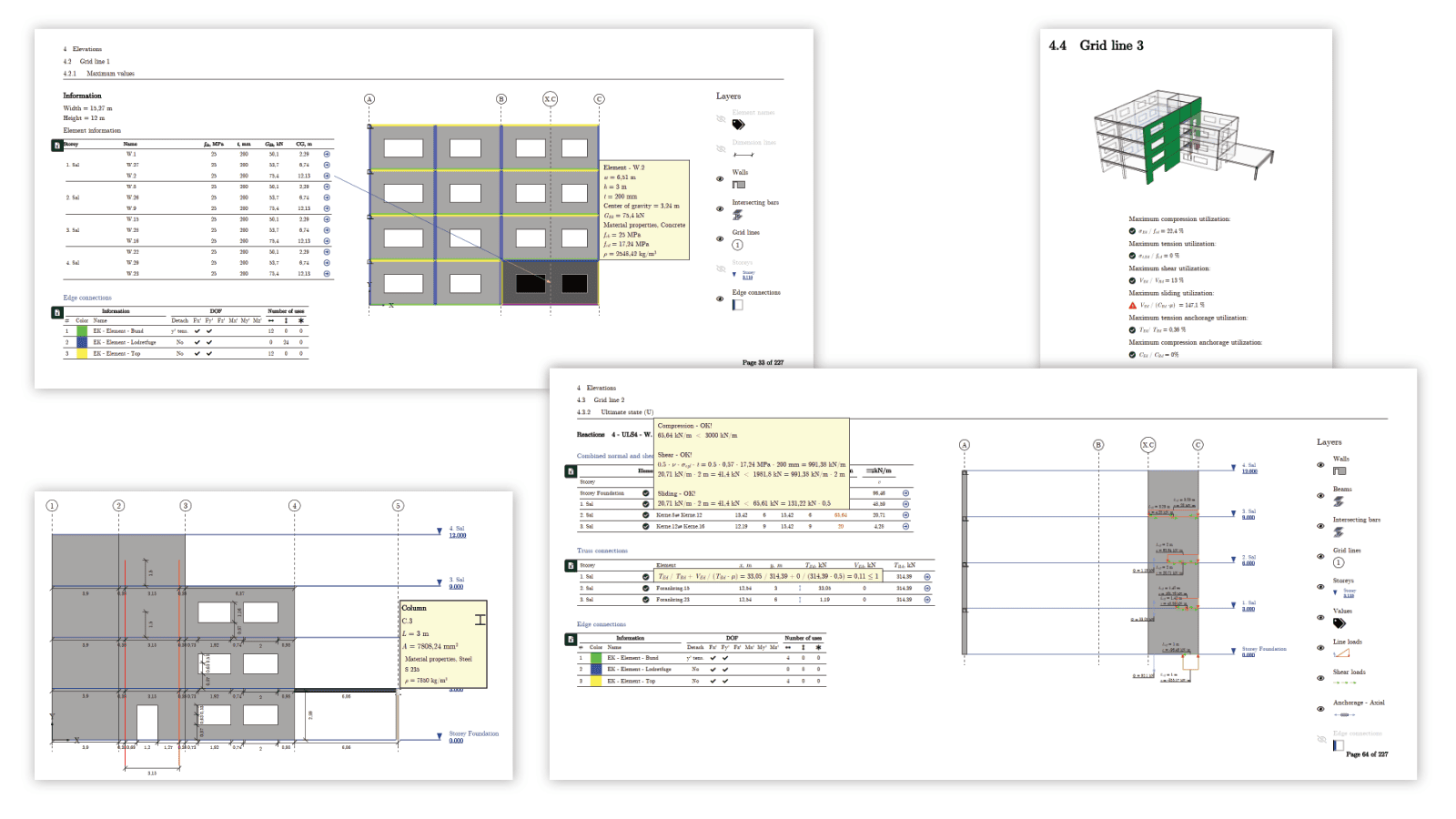
Elevations
Each axis is documented with:
-
Structural elevation – axis views with geometry specifications, edge conditions and material properties
-
Loads and reactions – external loads and reactions per load combination, on axis level and on each component
-
Design checks – basic stability design checks for concrete walls and anchorage
-
Element drill-down – results shown on the elevation as a whole, or for each element alone
Bar elements
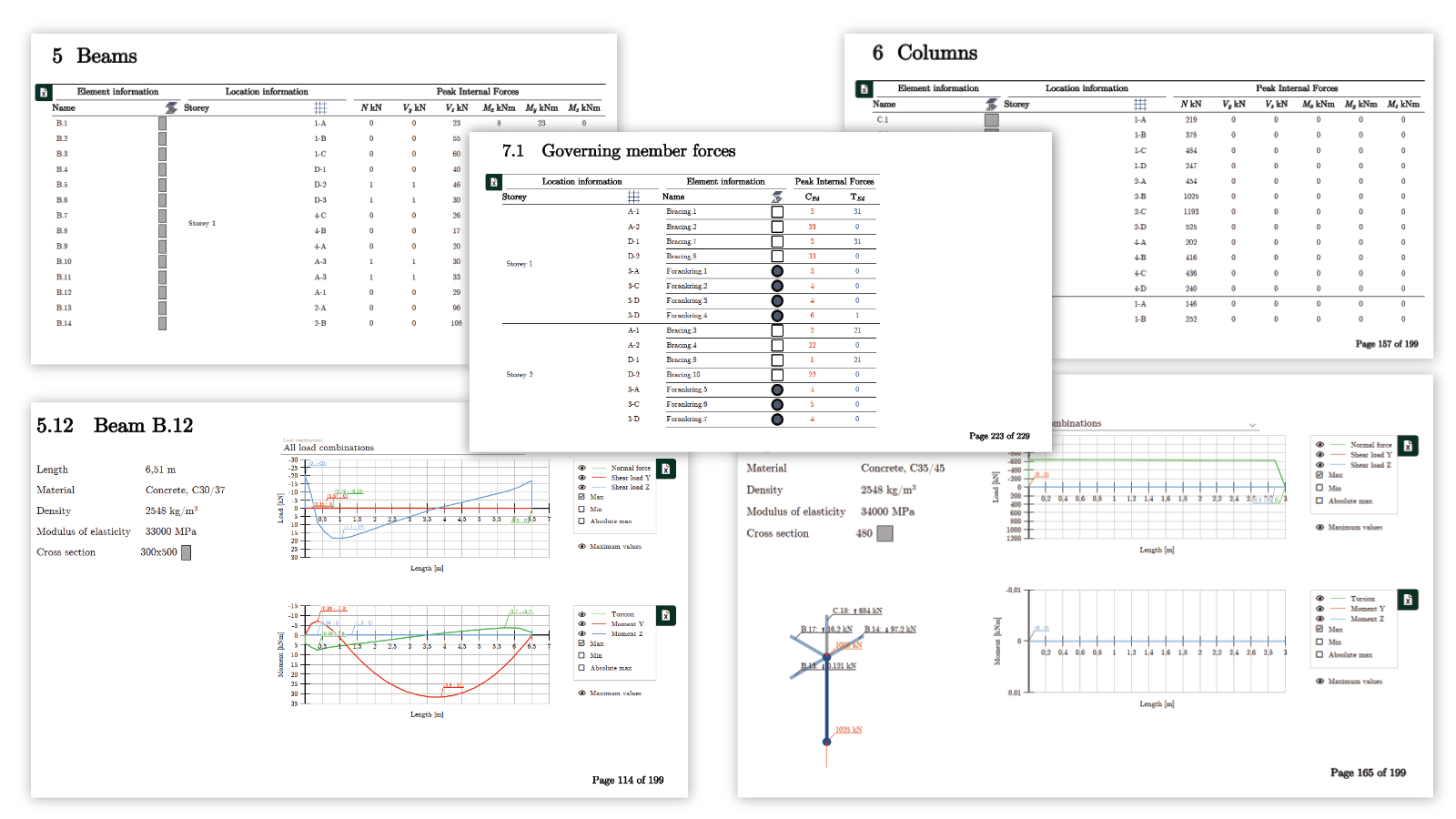
Beams, columns, fictitious bars and truss elements are summarized in tables with:
-
Specifications – geometrical specifications and material properties
-
Governing section forces – the max of all load combinations, or per load combination
-
Member internal forces – for all bar types
-
Column axial loads – displayed in a 3D figure
Adjusting the report content
The content of the report is controlled from the print page before export. Most options remember your last choice, and changed values can be saved as your new default for future reports.
-
Load combinations – pick which load combination types, combinations and load cases are eligible to appear anywhere in the report
-
Print format – choose a print-friendly A4 layout, or full-scale drawings with a paper orientation and a maximum paper size up to A0
-
Header – include your company logo and contact information, and note who's controlled the report
-
Design checks – whether the design checks are included is specified in the settings, with an additional equilibrium check for calculation methods other than Based on FEM-Design
-
Tooltips and Excel export – add the interactive tooltips and per-table Excel export used in the report's Interactive features
-
Elevations – toggle elevations on or off, show maximum values or per-combination detail and include single shell elements; edge connections are added automatically wherever the model contains them
-
Floor plans – toggle floor plans on or off, show load combinations one per page or combined onto one, show maximum values or per-combination detail and display line loads as an intensity or a graph
-
Surface load plans – include load case and load combination surface plans independently of each other
-
Beams and columns – the Print beams, Print columns, Print fictitious bars and Print trusses options each add that element type's properties and results, with a choice between per-combination results or the governing max, min and absolute max values
Interactive features
Opened in a supported viewer, the report is more than a static print:
-
Toggleable layers – switch layers on and off to control what's displayed on plans and elevations
-
Tooltips – hover components for more information, i.e. the load combination a value originates from
-
Tables of contents – clickable summary tables for bar elements – jump to the load combination behind a value, and see each bar's location relative to the nearest gridlines
-
Excel export – an icon on the tables generates tabulated data ready to paste into Excel (viewer dependent)
-
Dimension lines – plans and elevations are dimensioned against the gridlines
Merging reports
Multiple PREFAB reports (and normal PDFs) can be combined without losing the interactive features, using the built-in merge tool.
To merge PDFs while keeping their interactive features, see Merge PDF.