Circle
Use the Circle tool to add circles to the model space. The circles act as snapping points for other tools and they can be used as reference for tools which require curved edges or lines (like beam). They are not structural.

When you select the Circle tool from the menu, a new tool palette opens.
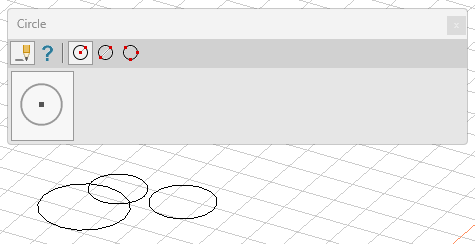
Main tools on the tool palette
| Description | |
|---|---|
 | Use Define tool to add a new circle to the model. |
 | Use Properties tool to check properties of existing circles. This will open the Default settings dialogue for the selected circle(s). |
 | Only while Define tool is selected, use this Circle radius function to add a new circle by defining its center point and radius. |
 | Only while Define tool is selected, use this Circle by diameter function to add a new circle by defining its diameter (two opposing points). |
 | Only while Define tool is selected, use this Circle by 3 point function to add a new circle by defining 3 points on the circle. |
 | Use Default settings tool to change some settings (read below in more detail). |
Default settings
The Default settings tool opens a new dialogue window.

- Layer – change the layer of the line
- Style – change the line style
- Pen – change the pen width (line thickness)
- Color – change the colour of the line