Logo
Use the Logo tool to add a logo as an image to the Report in the Documentation module.

info
Logo tool is only available in the Documentation module.
When you select the Logo tool from the menu, a new tool palette opens.
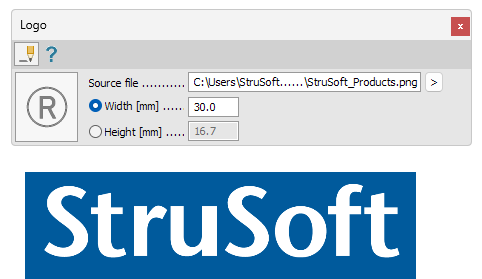
Main tools on the tool palette
| Description | |
|---|---|
 | Use Define tool to add a new logo to the documentation. |
 | Use Properties tool to check properties of existing logos. This will open the Default settings dialogue for the selected logo(s). |
 | In the Source file tool you can manually write the path to the logo image file or use the arrow next to the text box to search for the file using the regular Windows file dialogue. |
| Width | Here you can set the width of the logo in the Documentation module. The height will be calculated based on the image ratio. |
| Height | Here you can set the height of the logo in the Documentation module. The width will be calculated based on the image ratio. |
 | Use Default settings tool to change some settings (read below in more detail). |
Default settings
The Default settings tool opens a new dialogue window.

- Source file – change the path to the logo
- Width – change the width of the logo in the Documentation module. The height will be calculated based on the image ratio
- Height – change the height of the logo in the Documentation module. The width will be calculated based on the image ratio