Dimension
Use the Dimension tool to add dimensions to the model space, change existing ones and change the text of the measurement.

When you select the Dimension tool from the menu, a new tool palette opens.

Main tools on the tool palette
| Description | |
|---|---|
 | Use Define tool to add a new dimension to the model. |
 | Use Properties tool to check properties of existing dimensions. This will open the Default settings dialogue for the selected dimension(s). |
 | Use Dimension line position tool to change the location of an existing dimension line. |
 | Use Text content tool to change the text content of an existing dimension (override the measured value). |
 | Use Default settings tool to change some settings (read below in more detail). |
Dimensioning tools
Use these tools to add different types of dimensions.
| Description | |
|---|---|
 | Use Linear tool to add a new linear dimension. |
 | Use Modify line dimension tool to change existing dimensions by adding measuring points (extension lines) either in between existing points or outside of the current dimension. This tool will create a chained dimension line. |
 | Use Add dimension to base line tool to add base line style dimensions to any existing dimension. |
 | Use Arc tool to add an arc length dimension to an arc. |
 | Use Diameter tool to add a diameter dimension to a circle. |
 | Use Radius tool to add a radius dimension to a circle. |
 | Use Angle tool to add an angle measurement dimension between two lines (or edges). |
 | Use Level dimension tool to add an elevation dimension. |
Additional functions
Additional functions for some dimension tools.
| Description | |
|---|---|
 | Only while Linear tool is selected, use this Predefined direction function to add the dimension facing direction from 6 possible options. |
 | Only while Linear tool is selected, use this Parallel with line function to add the dimension so that it is parallel to a line that you draw in the model space. |
 | Only while Linear tool is selected, use this Perpendicular to plane tool to add the dimension so that it is perpendicular to a defined plane. You can draw 3 points in the model space to define the plane. |
 | Only while Predefined direction tool is selected, use this Direction tool to select one of the 6 possible options – global coordinate system X, Y or Z axis or user coordinate system x, y or z axis. |
 | Only while Modify line dimension tool is selected, use Remove tool to remove selected measuring points (extension lines) from an existing chained dimension. |
| Spacing | Only while Add dimension to base line tool is selected, use the Spacing field to enter the distance from the previous dimension line when adding new base line style dimensions. |
Default settings
The Default settings tool opens a new dialogue window with two tabs – one for dimension lines and one for texts.
Dimension
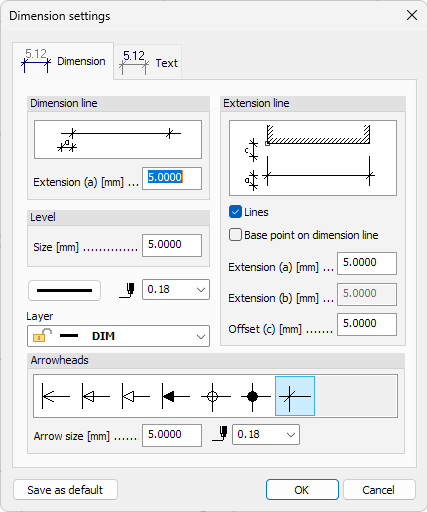
- Extension (a) – change the dimension line overhang/extension
- Size – change the diameter of the level dimension symbol
- Color – change the dimension line colour
- Pen – change the dimension line weight
- Layer – change the drawing layer for the dimensions
- Arrowheads – change the dimension arrowheads
- Arrow size – change the arrowhead size
- Arrowhead pen – change the line weight for arrowheads
- Lines – a checkbox to select whether you want to see the extension lines or not
- Base point on dimension line – a checkbox to select whether to measure the extension line length as an offset from the measuring point or as a length from the dimension line itself
- Extension (a) – change the extension line overhang/extension from the dimension line
- Extension (b) – only when the Base point on dimension line checkbox is unchecked, change the extension line overhang/extension from the dimension line toward the measuring point
- Offset (c) – only when the Base point on dimension line checkbox is checked, change the extension line offset from the measuring point
Text
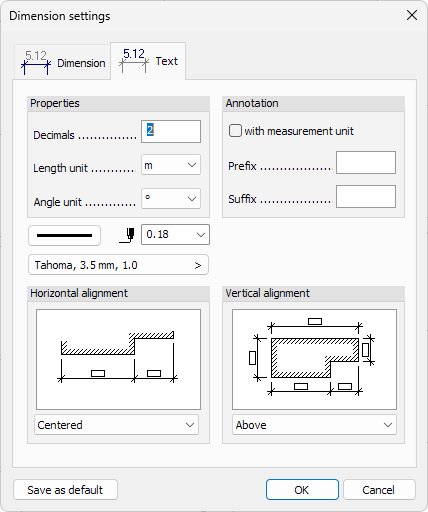
- Decimals – change the amount of decimal places
- Length unit – change the unit of length measurement
- Angle unit – change the unit of angle measurement
- Color – change the text colour
- Pen – change the text border weight (unsupported)
- Font – open a new dialogue window (read below in more detail)
- with measurement unit – a checkbox to allow the text to display together with the measurement unit
- Prefix – add text in front of the measured value
- Suffix – add text behind the measured value and behind the measurement unit
- Horizontal alignment – change the text horizontal position between 5 options:
- Centered – text is centered over the dimension line and parallel to it
- 1. Extension line – text is next to the first extension line but parallel to the dimension line
- 2. Extension line – text is next to the second extension line but parallel to the dimension line
- Under 1. Extension line – text is next to the first extension line and parallel to it
- Over 2. Extension line – text is next to the second extension line and parallel to it
- Vertical alignment – change the text vertical position between 2 options:
- Above – text is above the dimension line (above means in the direction of the text height)
- Outside – text is outside of the dimension line (outside means away from the measuring point)
Font

- Font – change the font family
- Size – change the font size
- Width factor – change the font width factor
- Bold, Italic, Underline or Strikethrough – add relevant effects to the text
- Get default arrow button – restore all the settings to their default values
- Below you can see a sample of how the text will look with the new settings