Text
Use the Text tool to add annotation text to the model space and change existing ones.

When you select the Text tool from the menu, a new tool palette opens.
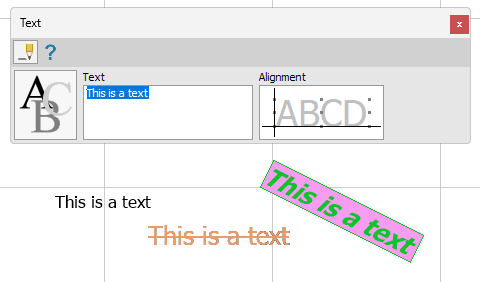
Main tools on the tool palette
| Description | |
|---|---|
 | Use Define tool to add a new text to the model. |
 | Use Properties tool to check properties of existing texts. This will open the Default settings dialogue for the selected text(s). |
 | Use the Text field to enter the text you want to insert into the model. |
 | Use Alignment function to change the text alignment relative to the insertion point. |
 | Use Default settings tool to change some settings (read below in more detail). |
Default settings
The Default settings tool opens a new dialogue window.
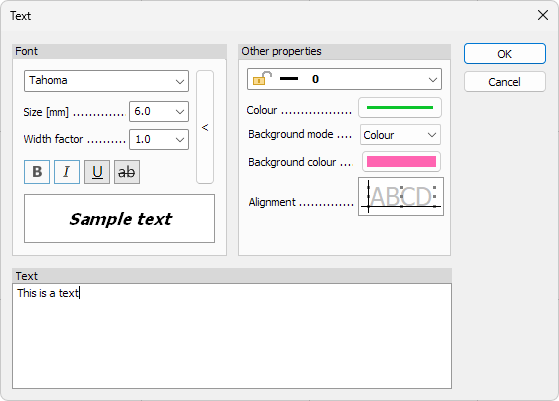
Font
- Font – change the font family
- Size – change the font size
- Width factor – change the font width factor
- Bold, Italic, Underline or Strikethrough – add relevant effects to the text
- Get default arrow button – restore all the settings to their default values
- Below you can see a sample of how the text will look with the new settings
Other properties
- Layer – change the drawing layer for the element
- Colour – change the text colour
- Background mode – change the background colour mode from the drop-down menu
- No fill – no background colour (transparent)
- Auto fill – colour is based on object colour
- Colour – you can manually set the colour
- Background colour – you can select a colour for the background (only available if you selected Colour in the Background mode)
- Alignment – change the text alignment relative to the insertion point
Text
- Use the text field to enter the text you want to insert into the model