Solid
Use the Solid tool to add solid elements to the model space. The solids are made of planes and thus can be used as reference for tools which require planes (like plates or walls). The edges of the planes can also be used as references for line based objects and they offer snapping points. They are not structural.

When you select the Solid tool from the menu, a new tool palette opens.
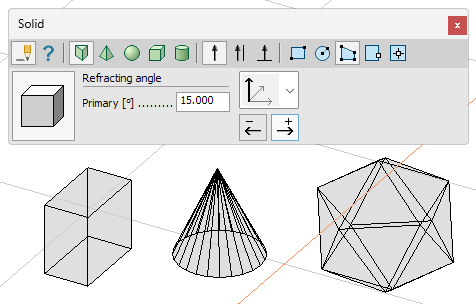
Main tools on the tool palette
| Description | |
|---|---|
 | Use Define tool to add a new solid to the model. |
 | Use Properties tool to check properties of existing solids. This will open the Default settings dialogue for the selected solid(s). |
 | Use Default settings tool to change some settings (read below in more detail). |
Main solid shape tools
| Description | |
|---|---|
 | Only while Define tool is selected, use this Prismatic tool to add a new prismatic solid – example is a cylinder. |
 | Only while Define tool is selected, use this Centric tool to add a new solid that has a top point – example is a truncated pyramid. |
 | Only while Define tool is selected, use this Sphere tool to add a new sphere or a segment of a sphere – example is a dome. |
 | Only while Define tool is selected, use this Regular tool to add a new solid from 5 predefined shapes – Tetrahedron, Cube, Octahedron, Dodecahedron or Icosahedron. |
 | Only while Define tool is selected, use this General tool to add a new solid. The solid can be of a variety of shapes – examples are a torus, a pipe elbow or a hyperboloid. |
Direction tools
These are available only for the Prismatic main shape.
| Description | |
|---|---|
 | Use Predefined direction function to set the extrusion direction from 6 possible options. |
 | Use Parallel with line function to set the extrusion direction by drawing a line in the model space. |
 | Use Perpendicular to plane tool to set the extrusion direction to be perpendicular to a selected plane. You can select the plane in the model space. |
 | Only while Predefined direction tool is selected, use this Direction tool to select one of the 6 possible options – global coordinate system X, Y or Z axis or user coordinate system x, y or z axis. |
 | Only while Predefined direction tool or Perpendicular to plane tool is selected, use the Positive direction and Negative direction buttons to change the positive/negative direction of the selected axis or normal of the selected plane. |
Contour tools
For Prismatic and Centric shapes these define the base shape. For General shape these can be either Generation line or Directrix.
| Description | |
|---|---|
 | Use Rectangular function to define a rectangle by two opposing corner points. |
 | Use Circular function to define a circle by center point and radius. |
 | Use Polygonal function to define a polygon with multiple consecutive points. |
 | Use Pick lines function to define the shape by using any existing closed shape that is made of lines, edges, axis or edges of a Region. |
 | Use Pick existing region function to define the shape by selecting an existing Region. |
Line tools
Only available for the General shape. These can be either Generation line or Directrix.
| Description | |
|---|---|
 | Use Straight line function to define a straight line. |
 | Use Arc by center, start point and angle function to define an arc by center point, start point and angle of the arc. |
 | Use Arc by 3 points function to define an arc by defining it with 3 points: start, end and middle of the arc. |
 | Use Arc by start, end point and tangent function to define a new arc by its start point, endpoint and start tangent. |
 | Use Line by selection function to define a new line based on any existing line or edge. |
Sphere tool sub-shapes
Only for the Sphere shape.
| Description | |
|---|---|
 | Use Full sphere sub-shape to define a full sphere. |
 | Use Segment of sphere sub-shape to define a segment of a sphere – a spherical cap or a truncated spherical cap. |
Sphere generation tools
Only for the Sphere shape.
| Description | |
|---|---|
 | Use Circle radius function to define the sphere by its center point and radius. |
 | Use Circle by diameter function to define the sphere by its diameter (two opposing points). |
 | Use Circle by 3 point function to define the sphere by 3 points on the circle. |
Regular tool sub-shapes
Only for the Regular shape.
| Description | |
|---|---|
 | Use Tetrahedron function to define a tetrahedron – 4 triangular faces. |
 | Use Cube function to define a cube – 6 square faces. |
 | Use Octahedron function to define an octahedron – 8 triangular faces. |
 | Use Dodecahedron function to define a dodecahedron – 12 pentagon faces. |
 | Use Icosahedron function to define an icosahedron – 20 triangular faces. |
Additional tools for the General shape
These affect how the General solid element is generated. This type of element is made of a directrix (a line or a contour that defines the movement of the generation line) and a generation line (a line or contour that defines the sides of the solid by moving along the directrix).
| Description | |
|---|---|
 | Use Directrix is contour lines function to draw the directrix as a contour (closed shape). |
 | Use Directrix is lines function to draw the directrix as a line and not a closed shape. |
 | Use Perpendicular function to make the generation line perpendicular to the directrix line. The generation line can rotate in space. |
 | Use Constant function to make the generation line keep the same orientation in space (it will not turn or rotate). |
Refracting angle
Available with the Prismatic, Centric, Sphere and General shapes. The refracting angles are used to divide any curved line (arc or circle) into finite straight elements.
- Primary – used for the base shape in Prismatic and Centric solids. In Sphere it is used for dividing in the circle plane (equatorial division). In General solid it is used for dividing a curved directrix
- Secondary – used for dividing perpendicular to the circle plane in Sphere (meridian division). In General solid it is used for dividing a curved generation line
Default settings
The Default settings tool opens a new dialogue window.

- Layer – change the layer of the solid
- Style – change the line style for the solid
- Pen – change the pen width (line thickness)
- Line colour – change the colour of the lines for the solid
- Fill mode – change the fill colour mode from the drop-down menu
- No fill – no fill colour (transparent)
- Auto fill – colour is based on object colour
- Colour – you can manually set the colour
- Fill colour – you can select a colour for the fill (only available if you selected Colour in the Fill mode)